Announcements
- Free Plan: 30-minute sessions and possible queue. Great for testing your connection and seeing if the service pleases you.
- Performance Plan: From R$ 63.90/month. Longer sessions (up to 5h), priority access and graphics with technologies such as RTX and DLSS.
- Ultimate Plan: Connects to a RTX 4080 in the cloud, with resolution up to 4K and 120 FPS. Prices are higher.
Internet requirements are more demanding as image quality can be much higher.Latency (response time) is also crucial.
| Desired Quality | Minimum Speed |
|---|---|
| 720p at 60 FPS | 15 Mbps |
| 1080p at 60 FPS | 25 Mbps |
| 1440p (2K) | 35 Mbps |
| 4K | 50 Mbps or more |
The service requires a latency below 80ms, but the ideal is to stay below 40ms. A fiber optic connection with network cable is the perfect scenario.
How to start playing: a simple step by step
Ready to get started? The process is pretty straightforward for both services. Follow the corresponding steps of your choice.
For Xbox Cloud Gaming:
- Sign Game Pass: Go to the official Xbox website and choose one of the compatible plans (Ultimate, Premium or Essential).
- Access platform: By browser, go to xbox.com/play. On mobile, download the “Xbox Game Pass” app.
- Login: Use the same Microsoft account as your subscription.
- Connect control: Pair your controller via Bluetooth or use a USB cable.
- Choose and play: Browse the library and click on “Play” in the game you want.
For GeForce Now (via ABYA):
- Create your account: Visit the ABYA website for GeForce Now and choose a plan (it may be free to test).
- Download the app: Install the “NVIDIA GeForce NOW” app on your PC, Mac, or Android play.geforcenow.com by browser.
- Connect your stores: In the settings, link your Steam, Epic Games, etc.This is where the service finds the games you already have.
- Select and play: Find a compatible game from your library and start playing.
Performance in Brazil: What to expect from your internet?
Performance depends entirely on your internet, especially stability and latency (the famous “ping”).
No Xbox Cloud Gaming, servers in Sao Paulo are a big plus. This reduces latency for most of the country, resulting in a faster response to commands.
Although Microsoft asks for 20 Mbps for a good experience, tests show a real consumption of 11 to 12 Mbps. Having a gap in the connection is essential.
- 》 Smart and cheap home: guide on how to automate your home with Alexa compatible products in Brazil
- 》 Pix Automatic and new functions: what to expect from the evolution of the most popular means of payment in the country
- 》 The Chinese electric car war: the embedded technology of BYD and GWM that is conquering Brazil
Gold tip: If other people use the internet in your home, a connection of 50 Mbps or more ensures that your game does not suffer from crashes.
Already the GeForce Now its servers for Latin America are in Uruguay. This can increase latency for those who live further north of Brazil.
On the other hand, NVIDIA technology is very optimized to compensate for this. Claro customers, the service partner, may have a better route to the servers.
In both cases, fiber optics is the best friend of the cloud player. Radio or 4G connections can suffer from instability, which causes image drops and delay in commands.
Didn't it serve you? Know other alternatives
If xCloud or GeForce Now did not meet your expectations, or if you are looking for something different, there are other options emerging in the Brazilian market.
- PlayStation Cloud Streaming For PS Plus Premium subscribers, it allows you to play PS4, PS5 and classic titles in the cloud, especially on the console.
- Boosteroid: A service that has gained strength and mentions having servers in Sao Paulo, which is a great attraction to reduce latency.
- NuvaCloud A Brazilian platform with servers in Campinas (SP). The promise is of very low latency for the national territory.
If your problem is internet speed, a tip is to always reduce the quality of streaming in the service settings. A 720p image is better than a crashing game.
Security alert: escape from common scams
The success of online games attracts many scammers.Be careful not to fall into traps that can steal your data and your money.
- Miraculous offers: Be wary of any ads for free and unlimited” free “cloud gaming. Legitimate services have clear costs and limitations.
- Fake apps: Download the apps only from the official stores (Google Play, App Store). Apps from unknown sources may contain viruses.
- Suspicious links: Do not click on links received by email or message promising discounts or early access. It is phishing to steal your password.
- Beware cheats: Sites that offer cheating for games are dangerous. They can install malware on your device and compromise your security.
Official channels and support: where to ask for help?
Did you have any problems? Need help? Always look for the official channels. Avoid tutorials from dubious sources that can make the situation worse.
Xbox Support
The official website to resolve any issue is the support.xbox.com/en-US. There you can chat with a virtual agent or request a call.
GeForce Now (ABYA) Support
The official website is abya.gfn.la/en-US. Within the app, the“Send” comments tool is the direct channel to report technical issues to the team.
The best way to know if cloud games are for you is by testing. Start with free plans and see how your connection behaves.
- Cellphones: Android 6.0 or higher; iOS 14.4 or higher.
- Computers: Windows (via Xbox app or browser) and Macs (via Safari browser).
- Others: Xbox consoles, LG and Samsung Smart TVs (select models) and Amazon Fire TV.
GeForce Now: Turn any PC into a gaming machine
GeForce Now works differently.It doesn't give you a catalog of games. Instead, it connects to your accounts from stores like Steam, Epic Games, and Ubisoft.
You play PC games that already has, but using the power of NVIDIA servers. In Brazil, the service is operated by partner ABYA.
This is perfect for those who already have a library of games on PC, but do not have a powerful machine to run them with graphics at most.
GeForce Now plans and requirements (via ABYA)
The service offers everything from a free plan to try out to robust options for those who demand the highest image quality and performance.
- Free Plan: 30-minute sessions and possible queue. Great for testing your connection and seeing if the service pleases you.
- Performance Plan: From R$ 63.90/month. Longer sessions (up to 5h), priority access and graphics with technologies such as RTX and DLSS.
- Ultimate Plan: Connects to a RTX 4080 in the cloud, with resolution up to 4K and 120 FPS. Prices are higher.
Internet requirements are more demanding as image quality can be much higher.Latency (response time) is also crucial.
| Desired Quality | Minimum Speed |
|---|---|
| 720p at 60 FPS | 15 Mbps |
| 1080p at 60 FPS | 25 Mbps |
| 1440p (2K) | 35 Mbps |
| 4K | 50 Mbps or more |
The service requires a latency below 80ms, but the ideal is to stay below 40ms. A fiber optic connection with network cable is the perfect scenario.
How to start playing: a simple step by step
Ready to get started? The process is pretty straightforward for both services. Follow the corresponding steps of your choice.
For Xbox Cloud Gaming:
- Sign Game Pass: Go to the official Xbox website and choose one of the compatible plans (Ultimate, Premium or Essential).
- Access platform: By browser, go to xbox.com/play. On mobile, download the “Xbox Game Pass” app.
- Login: Use the same Microsoft account as your subscription.
- Connect control: Pair your controller via Bluetooth or use a USB cable.
- Choose and play: Browse the library and click on “Play” in the game you want.
For GeForce Now (via ABYA):
- Create your account: Visit the ABYA website for GeForce Now and choose a plan (it may be free to test).
- Download the app: Install the “NVIDIA GeForce NOW” app on your PC, Mac, or Android play.geforcenow.com by browser.
- Connect your stores: In the settings, link your Steam, Epic Games, etc.This is where the service finds the games you already have.
- Select and play: Find a compatible game from your library and start playing.
Performance in Brazil: What to expect from your internet?
Performance depends entirely on your internet, especially stability and latency (the famous “ping”).
No Xbox Cloud Gaming, servers in Sao Paulo are a big plus. This reduces latency for most of the country, resulting in a faster response to commands.
Although Microsoft asks for 20 Mbps for a good experience, tests show a real consumption of 11 to 12 Mbps. Having a gap in the connection is essential.
Gold tip: If other people use the internet in your home, a connection of 50 Mbps or more ensures that your game does not suffer from crashes.
Already the GeForce Now its servers for Latin America are in Uruguay. This can increase latency for those who live further north of Brazil.
On the other hand, NVIDIA technology is very optimized to compensate for this. Claro customers, the service partner, may have a better route to the servers.
In both cases, fiber optics is the best friend of the cloud player. Radio or 4G connections can suffer from instability, which causes image drops and delay in commands.
Didn't it serve you? Know other alternatives
If xCloud or GeForce Now did not meet your expectations, or if you are looking for something different, there are other options emerging in the Brazilian market.
- PlayStation Cloud Streaming For PS Plus Premium subscribers, it allows you to play PS4, PS5 and classic titles in the cloud, especially on the console.
- Boosteroid: A service that has gained strength and mentions having servers in Sao Paulo, which is a great attraction to reduce latency.
- NuvaCloud A Brazilian platform with servers in Campinas (SP). The promise is of very low latency for the national territory.
If your problem is internet speed, a tip is to always reduce the quality of streaming in the service settings. A 720p image is better than a crashing game.
Security alert: escape from common scams
The success of online games attracts many scammers.Be careful not to fall into traps that can steal your data and your money.
- Miraculous offers: Be wary of any ads for free and unlimited” free “cloud gaming. Legitimate services have clear costs and limitations.
- Fake apps: Download the apps only from the official stores (Google Play, App Store). Apps from unknown sources may contain viruses.
- Suspicious links: Do not click on links received by email or message promising discounts or early access. It is phishing to steal your password.
- Beware cheats: Sites that offer cheating for games are dangerous. They can install malware on your device and compromise your security.
Official channels and support: where to ask for help?
Did you have any problems? Need help? Always look for the official channels. Avoid tutorials from dubious sources that can make the situation worse.
Xbox Support
The official website to resolve any issue is the support.xbox.com/en-US. There you can chat with a virtual agent or request a call.
GeForce Now (ABYA) Support
The official website is abya.gfn.la/en-US. Within the app, the“Send” comments tool is the direct channel to report technical issues to the team.
The best way to know if cloud games are for you is by testing. Start with free plans and see how your connection behaves.
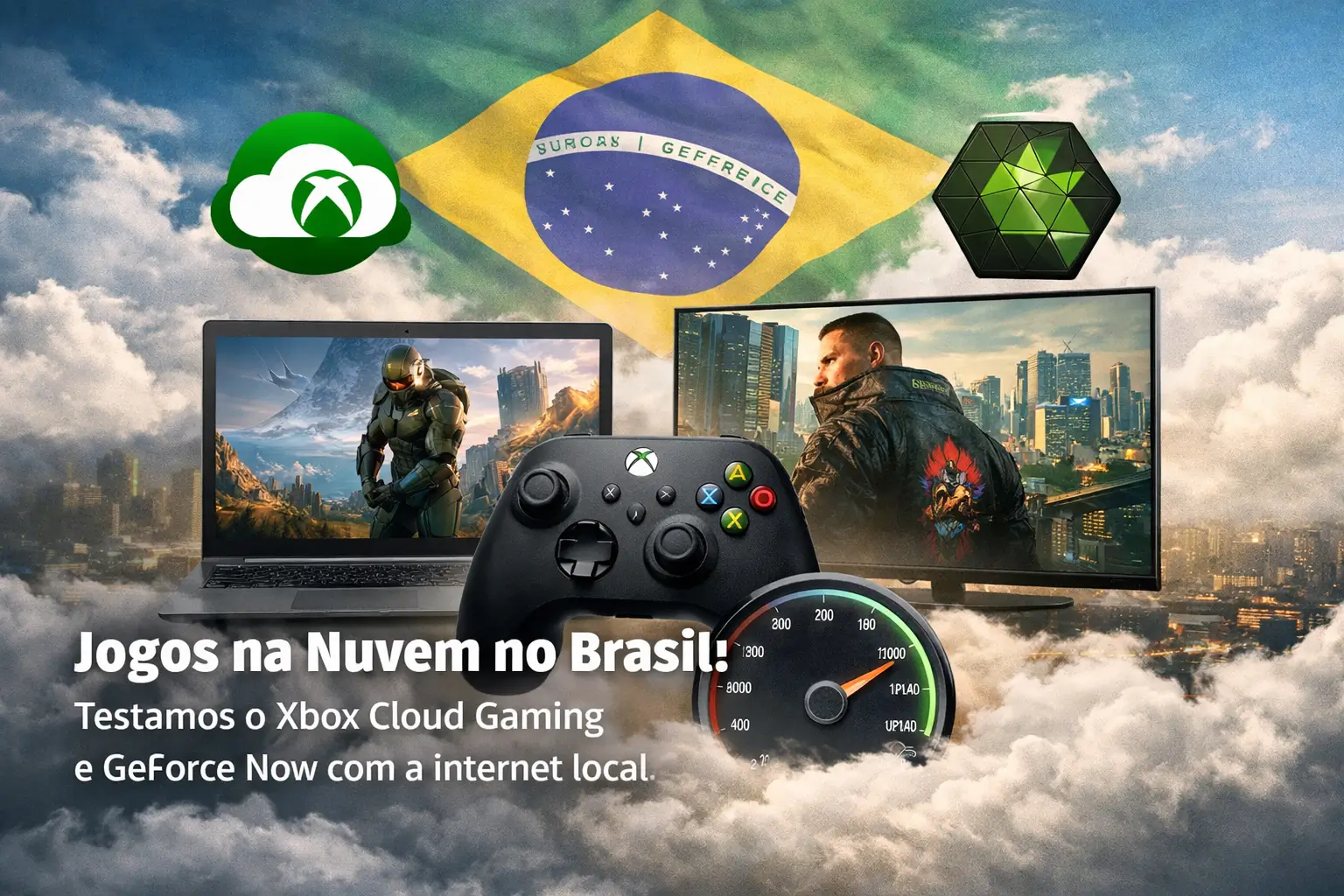
Playing next-generation games without an expensive console or PC is already a reality in Brazil. But will cloud games work well with our internet?
We test the Xbox Cloud Gaming (xCloud) and the GeForce Now the short answer: yes, it works, but the secret lies in the stability of your connection.
This handy guide shows you everything you need to know to start playing today.
What are cloud games and how do they work?
Think Netflix, but for games. Instead of installing the game, you access it over the internet. The game runs on a supercomputer from a company, such as Microsoft or NVIDIA.
Your phone, TV or computer receives only the image and sound. Your commands in the controller are sent in real time to this server.
This eliminates the need to buy expensive hardware.The most important thing happens to be your internet connection, not the power of your device.
Xbox Cloud Gaming (xCloud): The Game Pass catalog in your hand
Xbox Cloud Gaming, or xCloud, is part of your Xbox Game Pass subscription, giving you access to a giant library of Xbox games right from the cloud.
It is ideal for those seeking variety without having a console. The service uses Microsoft servers, which have a base in Sao Paulo to serve Brazil.
Important fact: For some free games, like Fortnite, you only need a free Microsoft account to play in the cloud.A great test!
For the full catalog, subscription is required. Recently, plans have been updated, making access wider.
Requirements to use Xbox Cloud Gaming
Before you sign up, make sure you meet the minimum requirements.The good news is that they are well accessible for most current devices.
- Signature: Game Pass Ultimate is the most complete plan.But Essential (R$ 43.90/month) and Premium (R$ 59.90/month) also include the service.
- Internet: Minimum of 10 Mbps for an optimal PC or TV experience, Microsoft recommends 20 Mbps or more.
- Connection: 5GHz Wi-Fi or network cable are highly recommended. 2.4GHz networks may suffer more interference.
- Control: A Bluetooth controller or USB connection. Some games on the phone screen accept touch commands.
Basically, if you have a mobile phone, tablet, PC or even some recent Smart TVs, you can play.
- Cellphones: Android 6.0 or higher; iOS 14.4 or higher.
- Computers: Windows (via Xbox app or browser) and Macs (via Safari browser).
- Others: Xbox consoles, LG and Samsung Smart TVs (select models) and Amazon Fire TV.
GeForce Now: Turn any PC into a gaming machine
GeForce Now works differently.It doesn't give you a catalog of games. Instead, it connects to your accounts from stores like Steam, Epic Games, and Ubisoft.
You play PC games that already has, but using the power of NVIDIA servers. In Brazil, the service is operated by partner ABYA.
This is perfect for those who already have a library of games on PC, but do not have a powerful machine to run them with graphics at most.
GeForce Now plans and requirements (via ABYA)
The service offers everything from a free plan to try out to robust options for those who demand the highest image quality and performance.
- Free Plan: 30-minute sessions and possible queue. Great for testing your connection and seeing if the service pleases you.
- Performance Plan: From R$ 63.90/month. Longer sessions (up to 5h), priority access and graphics with technologies such as RTX and DLSS.
- Ultimate Plan: Connects to a RTX 4080 in the cloud, with resolution up to 4K and 120 FPS. Prices are higher.
Internet requirements are more demanding as image quality can be much higher.Latency (response time) is also crucial.
| Desired Quality | Minimum Speed |
|---|---|
| 720p at 60 FPS | 15 Mbps |
| 1080p at 60 FPS | 25 Mbps |
| 1440p (2K) | 35 Mbps |
| 4K | 50 Mbps or more |
The service requires a latency below 80ms, but the ideal is to stay below 40ms. A fiber optic connection with network cable is the perfect scenario.
How to start playing: a simple step by step
Ready to get started? The process is pretty straightforward for both services. Follow the corresponding steps of your choice.
For Xbox Cloud Gaming:
- Sign Game Pass: Go to the official Xbox website and choose one of the compatible plans (Ultimate, Premium or Essential).
- Access platform: By browser, go to xbox.com/play. On mobile, download the “Xbox Game Pass” app.
- Login: Use the same Microsoft account as your subscription.
- Connect control: Pair your controller via Bluetooth or use a USB cable.
- Choose and play: Browse the library and click on “Play” in the game you want.
For GeForce Now (via ABYA):
- Create your account: Visit the ABYA website for GeForce Now and choose a plan (it may be free to test).
- Download the app: Install the “NVIDIA GeForce NOW” app on your PC, Mac, or Android play.geforcenow.com by browser.
- Connect your stores: In the settings, link your Steam, Epic Games, etc.This is where the service finds the games you already have.
- Select and play: Find a compatible game from your library and start playing.
Performance in Brazil: What to expect from your internet?
Performance depends entirely on your internet, especially stability and latency (the famous “ping”).
No Xbox Cloud Gaming, servers in Sao Paulo are a big plus. This reduces latency for most of the country, resulting in a faster response to commands.
Although Microsoft asks for 20 Mbps for a good experience, tests show a real consumption of 11 to 12 Mbps. Having a gap in the connection is essential.
Gold tip: If other people use the internet in your home, a connection of 50 Mbps or more ensures that your game does not suffer from crashes.
Already the GeForce Now its servers for Latin America are in Uruguay. This can increase latency for those who live further north of Brazil.
On the other hand, NVIDIA technology is very optimized to compensate for this. Claro customers, the service partner, may have a better route to the servers.
In both cases, fiber optics is the best friend of the cloud player. Radio or 4G connections can suffer from instability, which causes image drops and delay in commands.
Didn't it serve you? Know other alternatives
If xCloud or GeForce Now did not meet your expectations, or if you are looking for something different, there are other options emerging in the Brazilian market.
- PlayStation Cloud Streaming For PS Plus Premium subscribers, it allows you to play PS4, PS5 and classic titles in the cloud, especially on the console.
- Boosteroid: A service that has gained strength and mentions having servers in Sao Paulo, which is a great attraction to reduce latency.
- NuvaCloud A Brazilian platform with servers in Campinas (SP). The promise is of very low latency for the national territory.
If your problem is internet speed, a tip is to always reduce the quality of streaming in the service settings. A 720p image is better than a crashing game.
Security alert: escape from common scams
The success of online games attracts many scammers.Be careful not to fall into traps that can steal your data and your money.
- Miraculous offers: Be wary of any ads for free and unlimited” free “cloud gaming. Legitimate services have clear costs and limitations.
- Fake apps: Download the apps only from the official stores (Google Play, App Store). Apps from unknown sources may contain viruses.
- Suspicious links: Do not click on links received by email or message promising discounts or early access. It is phishing to steal your password.
- Beware cheats: Sites that offer cheating for games are dangerous. They can install malware on your device and compromise your security.
Official channels and support: where to ask for help?
Did you have any problems? Need help? Always look for the official channels. Avoid tutorials from dubious sources that can make the situation worse.
Xbox Support
The official website to resolve any issue is the support.xbox.com/en-US. There you can chat with a virtual agent or request a call.
GeForce Now (ABYA) Support
The official website is abya.gfn.la/en-US. Within the app, the“Send” comments tool is the direct channel to report technical issues to the team.
The best way to know if cloud games are for you is by testing. Start with free plans and see how your connection behaves.
Maybe you might like: