Announcements
After installing the application, many people crash in the next step: how to Access the Student Journey and understand what to do inside it. The good news is that access is simple &, and with a few taps, you can already view your school data and benefits 📱.
How to access the Student Journey step by step
If you want to know how to access the Student Journey, the process is fast and done directly by mobile.
👉 See step by step:
- Open the app on your mobile phone
- Tap enter with gov.br
- Enter your CPF and password
- Authorize access if necessary
📌 Important: you do not need to create registration within the app. As soon as you log in, the system already automatically loads your information.
👉 It is this access that allows you to follow your school life and check benefits such as Midfoot in a few seconds.
How to login to the app
The login in the app is fully integrated into the system gov.br, the same used in other government services.
To access, you need:
- Have one Valid CPF
- Owning one active gov.br account
👉 If you don't have an account yet, you can create for free at:
https://www.gov.br
📱 Or download the official app“gov.br”:
- Android: https://play.google.com/store/apps/details?id=br.gov.meugovbr&hl=en_BR
- iPhone: https://apps.apple.com/br/app/gov-br/id1506827551
💡 Depending on your account level, you may need to confirm your identity with code, SMS, or additional validation.
What appears on the home screen
🏠 When entering the application, you already see a panel with the main information.
📌 In general, the home screen shows:
- Your basic data
- School information
- Quick access to benefits
- MEC Notices and Communications
👉 The idea is to facilitate access to the most important information right away, without having to navigate too much.
Where to view school data
inside the application, you can follow your academic trajectory in an organized way.
Among the available data are:
- School history
- Information on courses and disciplines
- Academic records
⚠️ This information is sent by your school.
That is, if something does not appear, it may be that the institution has not yet integrated or updated the data in the system.
Where to see educational benefits
The application also allows you to consult benefits such as the Midfoot.
within this area, you can:
- See if you are participating in the program
- Check the status of payments
- Access the parcel history
- Check the calendar of deposits
- Identify pending
📌 Attention! the app does not make payments 'IT works only as a query. The amounts are deposited on other platforms, such as the Box Has.
How to track updates and information from MEC
🔔 In addition to the data and benefits, the app also works as a direct channel with MEC.
👉 You can follow:
- Important warnings
- Updates on educational programs
- Official guidelines
💡 This prevents the student from relying on third parties to inform themselves and ensures direct access to official sources.
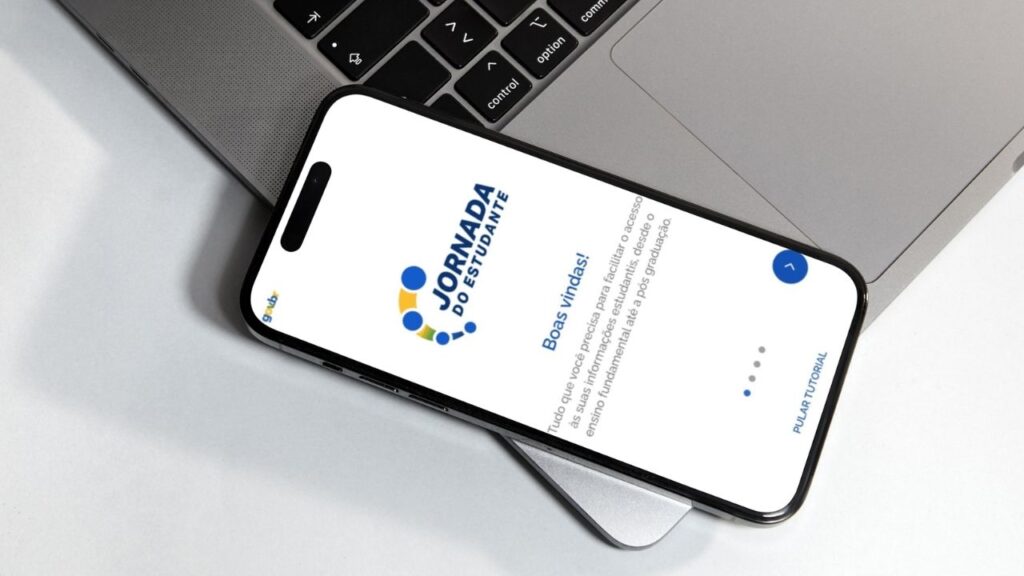
What to do after accessing the app for the first time
📱 Accessed the application for the first time? So it is worth doing a quick check to ensure that everything is working properly.
see what to check right on the first access:
📌 Your personal data
Check if name, CPF and other information is correct.
This data comes from gov.br, so any error should be fixed there.
📚 School information
See if data such as history, enrollment, or academic records appear.
⚠️ If nothing appears, the school may not have sent the information yet.
💰 Situation in benefits
Access the Midfoot area and check out:
- If you are participating
- Payments status
- Possible pending
🔔 Notifications & notifications
Stay tuned to MEC messages within the app 'they can bring important guidelines.
💡 Important tip: if any information is missing or incorrect, the ideal is:
👉 In most cases, inconsistencies are linked to sending out outdated data or records.
Now that you know how to access the Student Journey and use the main functions, it is easier to keep track of your school life and not lose any important information within the application.