Announcements
Many people still have questions about how to download the Student Journey and start using the application to track benefits and school data the process is simpler than it seems and can be done in a few minutes by mobile 📱.
How to download and register for the Student Journey
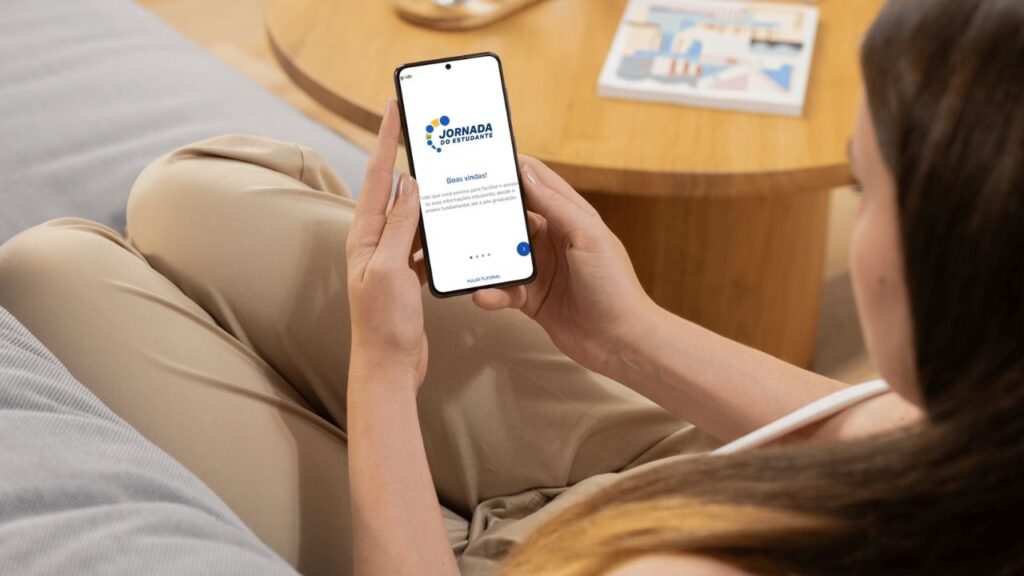
If you want to understand how to download the Student Journey, know that everything happens directly on mobile and involves two main steps: install the app and access with your gov.br account.
👉 See the full path:
- Access the app store on your mobile phone
- Search by “Jornada do Estudante” or use the official link (links below)
- Download the app for free
- Log in with your CPF and password gov.br
📌 Important: there is no separate registration within the app. As soon as you log in, the system already automatically pulls your data.
this process is essential because it is through the application that you track benefits, check pending issues and access your updated school information.
Where to download the official MEC app
⚠️ To avoid errors or fake applications download only from official stores:
- android (Google Play):
https://play.google.com/store/apps/details?id=br.gov.mec.jornada.estudente&hl=en_BR - 👉 iPhone (App Store):
https://apps.apple.com/br/app/student journey/id1
📊 The app already adds more than 10 Million downloads and is maintained by the Federal Government.
How to install the app on Android
if you use Android, here's how to download Student Journey:
- 🔎 Option 1:
- Open the Google Play Store
- Search by “Jornada do Estudante”
- Tap Install
- 🔗 Option 2 (direct):
⚙️ Requirement: Android 10 or higher.
How to install the app on iPhone
on iPhone, the process is also simple:
- 🔎 Option 1:
- Open the App Store
- Search by “Jornada do Estudante”
- Tap Get
- 🔗 Option 2 (direct):
- Access: https://apps.apple.com/br/app/student journey/id1
- Tap Get
the app is about 73.8 MB and requires iOS 15.6 or higher.
How to create or access the gov.br account
To use the app, it is mandatory to have an account gov.br, which works as a single login for several digital public services in Brazil.
👉 In practice, it is this account that allows the system to identify you safely and automatically pull your school data and benefits information.
If you do not have an account yet, here's how to create:
1️⃣ Access: https://www.gov.br or download the official app:
- Android: https://play.google.com/store/apps/details?id=br.gov.meugovbr&hl=en_BR
- iPhone: https://apps.apple.com/br/app/gov-br/id1506827551
2️⃣ Inform your CPF
3️⃣ Click on “Create” account
4️⃣ Follow the validation steps
5️⃣ Create a password
💡 Important tip: level accounts silver or gold they offer more security and release more functionality, including in other government services.
How to make the first registration in the application
Here is a point that raises doubt:
👉 You do not have to manually sign up for the app.
The process works like this:
- You log in with your gov.br account
- The system automatically searches for your data
- The information appears on the screen, if available
this depends on the correct sending of information by the school and the regularity of your data.
What to do if you are unable to complete the registration
if you tried, but couldn't access it it is worth checking a few points:
- Is your gov.br login correct?
- Is your CPF regular at the Federal Revenue?
- Is your data in Cadunico up to date?
- Has your school sent your information to MEC?
👉 In most cases, the problem is related to inconsistent data or lack of integration of the school with the system.
📢 Important: data is updated periodically. If something has been fixed recently, it may take a while to appear in the app.
Now that you know how to download the Student Journey and make access correctly, the next step is to learn how to use the application on a daily basis and consult its benefits more safely.