Announcements
If you want to find out how to download CNH Digital and access your license directly from your phone, following the correct procedure makes all the difference.In this guide, you will see the step by step, the necessary requirements and how to solve the most common problems.
How to download and consult CNH Digital on mobile
CNH Digital (CNH-e) is the electronic version of the National Driver's License and has the same legal validity as the printed version throughout the national territory.
Today, the document is accessed by official CNH app of Brazil, evolution of the old Digital Traffic Wallet (CDT). In addition to the license, the application also gathers other digital documents related to traffic, such as the Digital CRLV.
🔐 Once CNH is added to the app, simply log in to query it whenever necessary. Access can be protected by a four-digit password and, on compatible devices, also by biometrics, offering more practicality and safety.
Among the main advantages are:
- ✅ Document valid throughout Brazil;
- ✅ Protection by encryption, QR Code and digital signature;
- ✅ Possibility to access the CNH even without internet;
- Document always available on mobile;
- Export of the document in PDF with legal validity.
Important: CNH Digital is optional. The driver can continue using the physical version as normal.
Requirements to issue CNH Digital
Before starting the process, check if you meet the requirements required by the National Traffic Secretariat (Senatran):
- possessing a CNH valid with QR Code (issued from May 2017);
- have a account Gov.br silver or Gold Level;
- use a mobile phone compatible with the application;
- have access to the internet during initial activation.
Currently (july 2026), the minimum requirements for installing the application are:
- Android 7.0 or higher;
- iOS 15.5 or higher.
if you do not already have a Gov.br account or need to raise your security level, this must be done before trying to issue CNH Digital. Here's how to create a Gov.br account or increase your level.
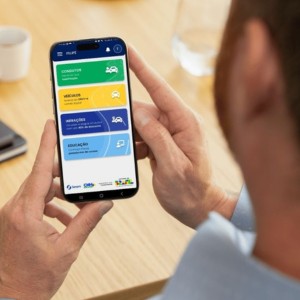
How to download the official CNH app from Brazil
The first step to download CNH Digital is install only the official app made available by the Federal Government.
Download via official channels:
- Android: https://play.google.com/store/apps/details?id=br.gov.serpro.cnhe
- iPhone (iOS): https://apps.apple.com/br/app/cnh-do-brasil/id1275057217
After installing the application:
- Open the CNH of Brazil.
- Log in using your CPF and the Gov.br account password.
- On the home screen, tap Conductor.
- Then select CNH to start issuing the digital document.
⚠️ Always use official links. Avoid downloading third-party applications to protect your personal data and your Gov.br account.
How to add your CNH to the app
Once you enter the app, the process is simple.
Follow this step by step:
- Log in with your Gov.br account.
- Tap Conductor.
- Select CNH.
- Read the QR Code located on the back of your physical CNH.
- Take the photo requested by the application for facial validation.
- Wait for the image to be compared to the Detran database.
- Confirm the ZIP code registered with Detran.
- Wait for CNH Digital to be issued.
✅ If all information is correct, the document will be made available immediately in the application.
After that, you can set up an access password and, when available on the device, also enable biometric authentication.
What to do when CNH Digital does not appear
In some cases, the document is not displayed after login. The most common causes include:
- document without QR Code;
- cadastral divergences in Detran;
- Outdated ZIP code;
- outdated email or phone;
- error while reading QR Code;
- use of a Gov.br account other than that linked to the CNH holder.
If that happens, then check first if all data is up to date.
if the problem continues, the official guidance of Senatran is to look for the Detran responsible for issuing your CNH to check for possible inconsistencies in the registration.Often, updating the phone, email or ZIP code solves the situation.
How to resolve errors in facial validation
Facial validation compares the photo captured by the application with the image registered in the official Detran database.
When failure occurs try to follow these recommendations:
- 📱 Clean the camera lens;
- capture in a well-lit environment;
- keep your face fully visible;
- remove sunglasses, caps or objects that make recognition difficult;
- check your internet connection;
- 🔄 keep the app up to date.
If, even after several attempts, the validation continues to fail look for State Detran where your CNH was issued to check if there is any cadastral divergence or need to update the photograph used for conference.
How to use CNH Digital without internet
One of the main advantages of electronic documents is that they it is still available even when there is no internet connection.
After completing the initial activation, just open the application and enter your password or use biometrics, when configured.
This allows you to present CNH normally in situations such as:
- travel to regions without a signal;
- blitz on highways;
- locations with limited internet coverage;
- emergency situations.
📌 The internet is necessary only during the process of issuance and synchronization of document.
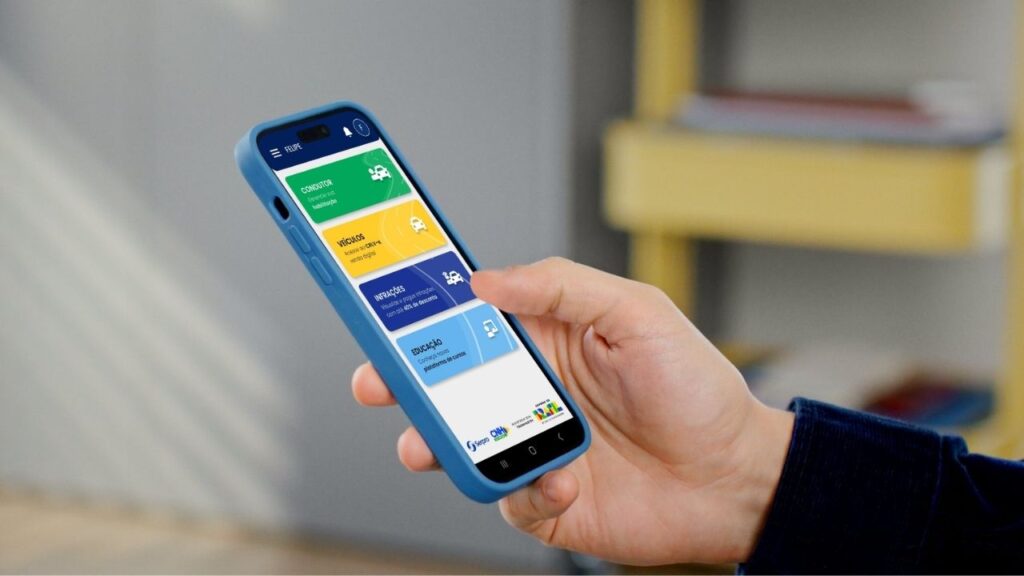
How to access CNH Digital on another mobile phone
If you change devices, simply install the official application again and log in with your Gov.br account.
However, there is one important limitation:
⚠️ CNH Digital can only remain active on one device at a time.
When you sign in to your account on a new phone, the previously connected device will automatically disconnect.
If the device has been lost or stolen, you can also access the Senatran Service Portal to manage the linked devices and remove the old device, increasing the security of your data.
➡️ https://portalservicos.senatran.serpro.gov.br/#/home
Once the new access is complete, your CNH will be available normally on the new device.