Announcements
- Leakage monitoring: Some services warn you if one of your passwords has appeared in some data leak on the internet.
- Secure sharing: Allows you to send a password to a family member or co-worker in an encrypted and secure way.
- Passkeys Support: The” access keys are the future of passwordless login. Supporting this technology is a big differentiator.
Recommended password managers to get started
There are several excellent options on the market, many with robust free versions and full support for Portuguese.
1. Google Password Manager (Free)
This is the native tool of Google, already integrated with your Android phone and Chrome browser.It is the easiest option for those who already use these services.
Ideal for: those who seek maximum practicality and already live in the Google ecosystem (Gmail, Android, Chrome).
To get started, just turn on sync in Chrome and let it save your passwords. On Android, the function is already enabled by default.
- Open them Settings from Android, tap “Google” and then “Manage your Google” Account.
- Go on tab “Safety” and search for “PASSword manager”.
- In Chrome, enable “Offer to save” passwords in the manager settings.
You can see all your saved passwords by going to the website google.google.com.
2. Bitwarden (Free and Open Source)
Bitwarden is a favorite of the security community. Its code is open source, which means any expert can verify its security.
Ideal for: who wants transparent security and a complete free plan, which allows you to use on as many devices as you want.
Its free plan already offers unlimited synchronization between devices, something that many competitors charge.
To get started, download the app from your mobile store or the browser extension. Create your account, set the master password and you're done!
3. NordPass (Security and Simplicity)
Developed by the same company as the famous NordVPN, NordPass focuses on a simple user experience with cutting-edge security.
Ideal for: users who value a clean interface and modern features such as monitoring data leaks.
It has a free version, but is limited to one device at a time. Paid plans release syncing and other advanced tools.
Tip: Many of these companies, such as NordPass, offer money back guarantee.You can test the paid version and if you don't like it, ask for your money back.
Other notable options
Other services are popular and can be a good choice depending on your need.
- 1Password: Great for families and businesses, with advanced organization and sharing features.
- Dashlane Known for its intuitive design and for offering unlimited password storage in the free mobile version.
- ICloud keys: If you only use Apple products (iPhone, Mac), this is the native, free, and seamlessly integrated solution.
LastPass was once very popular, but recent security incidents have shaken the trust of many users.
Step by step: how to start using today
Adopting a password manager is easier than it sounds. Follow these steps to organize your digital security.
- Choose your manager: Start with a robust free option, such as Bitwarden or Google Manager.
- Install the app and extension: Download the application on your mobile phone and if you use computer, install the extension in your browser.
- Create your master password: That's password most important. Create something long, unique and that you can memorize. Write it down on a paper and save it.
- Enable two-factor authentication (2FA): Use an app like Google Authenticator or biometrics to secure your vault.
- Import your old passwords: Most managers help you pull passwords that are already saved in your browser.
- Start saving the new ones: When creating a new account, use the generator to create a strong password and let the app save it.
- Update old passwords: Gradually, replace your repeated and weak passwords with new and secure passwords generated by the application.
Security alerts: care you still need to have
Even with a manager, you need to be aware.Criminals are always creating new ways to apply scams.
Warning: your master password is the key to your vault. Never, under any circumstances, share it with anyone or type it on suspicious websites.
Beware of phishing scams.These are fake emails or messages that impersonate companies to steal your master password.
Keep your phone and apps up to date. Updates fix security holes that can be exploited by hackers.
An extra tip for everyday life: enable two-step verification on your WhatsApp. This prevents your number from being cloned by scammers.
Where to find help and more information
To ensure that you are downloading the right and safe tool, always use the official sources.
- Application Stores: Download applications only from Google Play Store (for Android) or Apple App Store (for iPhone).
- Official Sites: To use on your computer, download extensions directly from official websites such as bitwarden.com or nordpass.com.
- Support Channels: If you have questions, look for the help section (FAQ) or consumer support on the official website of the chosen manager.
Adopting a password manager is a decisive step to have more peace of mind online. Choose yours and start organizing your digital life today.
- Simple interface: The application should be intuitive, with clear and easy to find buttons, especially on the small screen of the phone.
- Compatibility: Make sure it works on all your devices (Android, iPhone) and browsers (Chrome, Firefox, Safari).
- Effective automatic filling: The function of filling in passwords needs to work well on most websites and applications you use.
3. Resources that make a difference
Besides the basics, some extra features can be very useful.
- Leakage monitoring: Some services warn you if one of your passwords has appeared in some data leak on the internet.
- Secure sharing: Allows you to send a password to a family member or co-worker in an encrypted and secure way.
- Passkeys Support: The” access keys are the future of passwordless login. Supporting this technology is a big differentiator.
Recommended password managers to get started
There are several excellent options on the market, many with robust free versions and full support for Portuguese.
1. Google Password Manager (Free)
This is the native tool of Google, already integrated with your Android phone and Chrome browser.It is the easiest option for those who already use these services.
Ideal for: those who seek maximum practicality and already live in the Google ecosystem (Gmail, Android, Chrome).
To get started, just turn on sync in Chrome and let it save your passwords. On Android, the function is already enabled by default.
- Open them Settings from Android, tap “Google” and then “Manage your Google” Account.
- Go on tab “Safety” and search for “PASSword manager”.
- In Chrome, enable “Offer to save” passwords in the manager settings.
You can see all your saved passwords by going to the website google.google.com.
2. Bitwarden (Free and Open Source)
Bitwarden is a favorite of the security community. Its code is open source, which means any expert can verify its security.
Ideal for: who wants transparent security and a complete free plan, which allows you to use on as many devices as you want.
Its free plan already offers unlimited synchronization between devices, something that many competitors charge.
To get started, download the app from your mobile store or the browser extension. Create your account, set the master password and you're done!
3. NordPass (Security and Simplicity)
Developed by the same company as the famous NordVPN, NordPass focuses on a simple user experience with cutting-edge security.
Ideal for: users who value a clean interface and modern features such as monitoring data leaks.
It has a free version, but is limited to one device at a time. Paid plans release syncing and other advanced tools.
Tip: Many of these companies, such as NordPass, offer money back guarantee.You can test the paid version and if you don't like it, ask for your money back.
Other notable options
Other services are popular and can be a good choice depending on your need.
- 1Password: Great for families and businesses, with advanced organization and sharing features.
- Dashlane Known for its intuitive design and for offering unlimited password storage in the free mobile version.
- ICloud keys: If you only use Apple products (iPhone, Mac), this is the native, free, and seamlessly integrated solution.
LastPass was once very popular, but recent security incidents have shaken the trust of many users.
Step by step: how to start using today
Adopting a password manager is easier than it sounds. Follow these steps to organize your digital security.
- Choose your manager: Start with a robust free option, such as Bitwarden or Google Manager.
- Install the app and extension: Download the application on your mobile phone and if you use computer, install the extension in your browser.
- Create your master password: That's password most important. Create something long, unique and that you can memorize. Write it down on a paper and save it.
- Enable two-factor authentication (2FA): Use an app like Google Authenticator or biometrics to secure your vault.
- Import your old passwords: Most managers help you pull passwords that are already saved in your browser.
- Start saving the new ones: When creating a new account, use the generator to create a strong password and let the app save it.
- Update old passwords: Gradually, replace your repeated and weak passwords with new and secure passwords generated by the application.
Security alerts: care you still need to have
Even with a manager, you need to be aware.Criminals are always creating new ways to apply scams.
Warning: your master password is the key to your vault. Never, under any circumstances, share it with anyone or type it on suspicious websites.
Beware of phishing scams.These are fake emails or messages that impersonate companies to steal your master password.
Keep your phone and apps up to date. Updates fix security holes that can be exploited by hackers.
An extra tip for everyday life: enable two-step verification on your WhatsApp. This prevents your number from being cloned by scammers.
Where to find help and more information
To ensure that you are downloading the right and safe tool, always use the official sources.
- Application Stores: Download applications only from Google Play Store (for Android) or Apple App Store (for iPhone).
- Official Sites: To use on your computer, download extensions directly from official websites such as bitwarden.com or nordpass.com.
- Support Channels: If you have questions, look for the help section (FAQ) or consumer support on the official website of the chosen manager.
Adopting a password manager is a decisive step to have more peace of mind online. Choose yours and start organizing your digital life today.
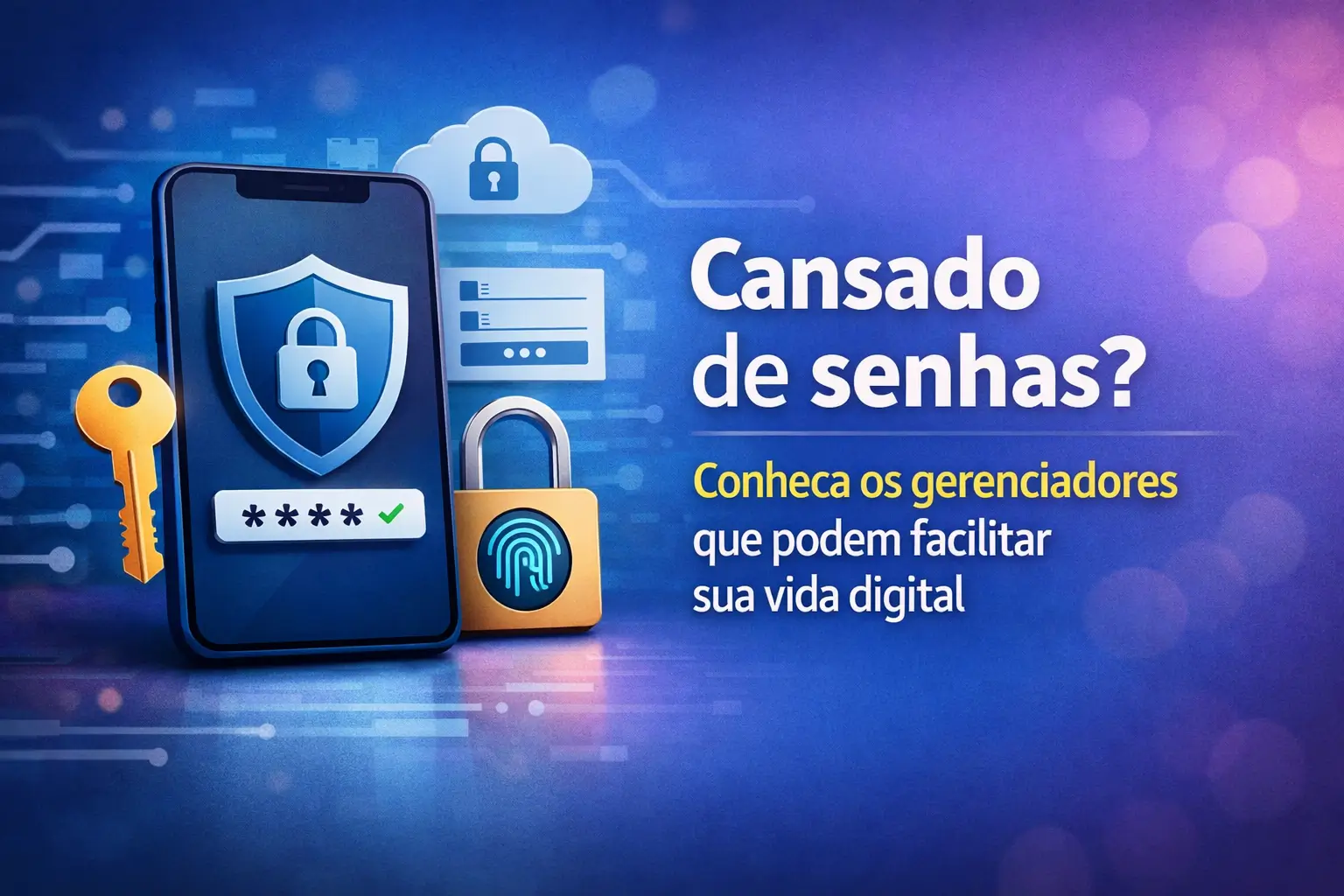
Tired of creating a new password for each site? Or worse, of using the same combination everywhere and being afraid of leaks.
This headache has a solution password managers they are tools that keep everything for you, in a safe and practical way.
In this complete guide, you will understand how they work and how to choose the ideal one to protect your digital life once and for all.
What are and how do password managers work?
Think of a password manager as a super secure digital vault. Inside it, you store all your logins and passwords for websites and apps.
To open this safe, you need only one key: the “master” password. This will be the only password you will really need to decorate.
Once you create it, the app takes care of the rest. It not only stores your credentials, but also offers other essential functions.
- Strong password generator: Create complex combinations with letters, numbers and symbols, almost impossible to guess.
- Automatic filling: Inserts your login and password in the right fields, saving you time and avoiding typos.
- Synchronization: Keeps your passwords up-to-date and accessible on your phone, computer and tablet, all at the same time.
- Extra storage: Many allow you to safely store credit card data, documents, and important notes.
Why is using a manager safer?
In Brazil, cyber attacks are a daily reality.Data leaks expose millions of people to scams and fraud.
Using weak or repeated passwords is like leaving the door open.If a criminal discovers a password, he will try to use it on several other services.
A manager solves this: it allows you to create a unique and strong password for each account, without the stress of having to remember all of them.
This dramatically increases your online security.If one service is hacked, your other accounts will remain protected, as each has a different key.
How to choose the right password manager for you
The choice of the right manager depends on your day to day. Think about how you use the internet, especially on mobile.
Here are the most important points to evaluate, thinking about the Brazilian reality and the use in 4G networks, often unstable.
1. Safety first
Security is the cornerstone of any good manager.Make sure it offers essential features to protect your data.
- Strong encryption: Look for “encryption AES-256”. It is the safest standard on the market, used by banks and governments.
- Architecture“Zero-knowledge”: This ensures that neither the company from the manager you can see your passwords.Your data is yours alone.
- Two-Factor Authentication (2FA): An extra layer of protection. Even if someone discovers your master password, they won't be able to sign in.
2. Ease of use in day to day
It is no use being safe if it is complicated to use. The tool needs to make your life easier, not the other way around.
- Simple interface: The application should be intuitive, with clear and easy to find buttons, especially on the small screen of the phone.
- Compatibility: Make sure it works on all your devices (Android, iPhone) and browsers (Chrome, Firefox, Safari).
- Effective automatic filling: The function of filling in passwords needs to work well on most websites and applications you use.
3. Resources that make a difference
Besides the basics, some extra features can be very useful.
- Leakage monitoring: Some services warn you if one of your passwords has appeared in some data leak on the internet.
- Secure sharing: Allows you to send a password to a family member or co-worker in an encrypted and secure way.
- Passkeys Support: The” access keys are the future of passwordless login. Supporting this technology is a big differentiator.
Recommended password managers to get started
There are several excellent options on the market, many with robust free versions and full support for Portuguese.
1. Google Password Manager (Free)
This is the native tool of Google, already integrated with your Android phone and Chrome browser.It is the easiest option for those who already use these services.
Ideal for: those who seek maximum practicality and already live in the Google ecosystem (Gmail, Android, Chrome).
To get started, just turn on sync in Chrome and let it save your passwords. On Android, the function is already enabled by default.
- Open them Settings from Android, tap “Google” and then “Manage your Google” Account.
- Go on tab “Safety” and search for “PASSword manager”.
- In Chrome, enable “Offer to save” passwords in the manager settings.
You can see all your saved passwords by going to the website google.google.com.
2. Bitwarden (Free and Open Source)
Bitwarden is a favorite of the security community. Its code is open source, which means any expert can verify its security.
Ideal for: who wants transparent security and a complete free plan, which allows you to use on as many devices as you want.
Its free plan already offers unlimited synchronization between devices, something that many competitors charge.
To get started, download the app from your mobile store or the browser extension. Create your account, set the master password and you're done!
3. NordPass (Security and Simplicity)
Developed by the same company as the famous NordVPN, NordPass focuses on a simple user experience with cutting-edge security.
Ideal for: users who value a clean interface and modern features such as monitoring data leaks.
It has a free version, but is limited to one device at a time. Paid plans release syncing and other advanced tools.
Tip: Many of these companies, such as NordPass, offer money back guarantee.You can test the paid version and if you don't like it, ask for your money back.
Other notable options
Other services are popular and can be a good choice depending on your need.
- 1Password: Great for families and businesses, with advanced organization and sharing features.
- Dashlane Known for its intuitive design and for offering unlimited password storage in the free mobile version.
- ICloud keys: If you only use Apple products (iPhone, Mac), this is the native, free, and seamlessly integrated solution.
LastPass was once very popular, but recent security incidents have shaken the trust of many users.
Step by step: how to start using today
Adopting a password manager is easier than it sounds. Follow these steps to organize your digital security.
- Choose your manager: Start with a robust free option, such as Bitwarden or Google Manager.
- Install the app and extension: Download the application on your mobile phone and if you use computer, install the extension in your browser.
- Create your master password: That's password most important. Create something long, unique and that you can memorize. Write it down on a paper and save it.
- Enable two-factor authentication (2FA): Use an app like Google Authenticator or biometrics to secure your vault.
- Import your old passwords: Most managers help you pull passwords that are already saved in your browser.
- Start saving the new ones: When creating a new account, use the generator to create a strong password and let the app save it.
- Update old passwords: Gradually, replace your repeated and weak passwords with new and secure passwords generated by the application.
Security alerts: care you still need to have
Even with a manager, you need to be aware.Criminals are always creating new ways to apply scams.
Warning: your master password is the key to your vault. Never, under any circumstances, share it with anyone or type it on suspicious websites.
Beware of phishing scams.These are fake emails or messages that impersonate companies to steal your master password.
Keep your phone and apps up to date. Updates fix security holes that can be exploited by hackers.
An extra tip for everyday life: enable two-step verification on your WhatsApp. This prevents your number from being cloned by scammers.
Where to find help and more information
To ensure that you are downloading the right and safe tool, always use the official sources.
- Application Stores: Download applications only from Google Play Store (for Android) or Apple App Store (for iPhone).
- Official Sites: To use on your computer, download extensions directly from official websites such as bitwarden.com or nordpass.com.
- Support Channels: If you have questions, look for the help section (FAQ) or consumer support on the official website of the chosen manager.
Adopting a password manager is a decisive step to have more peace of mind online. Choose yours and start organizing your digital life today.
Maybe you might like: