Announcements
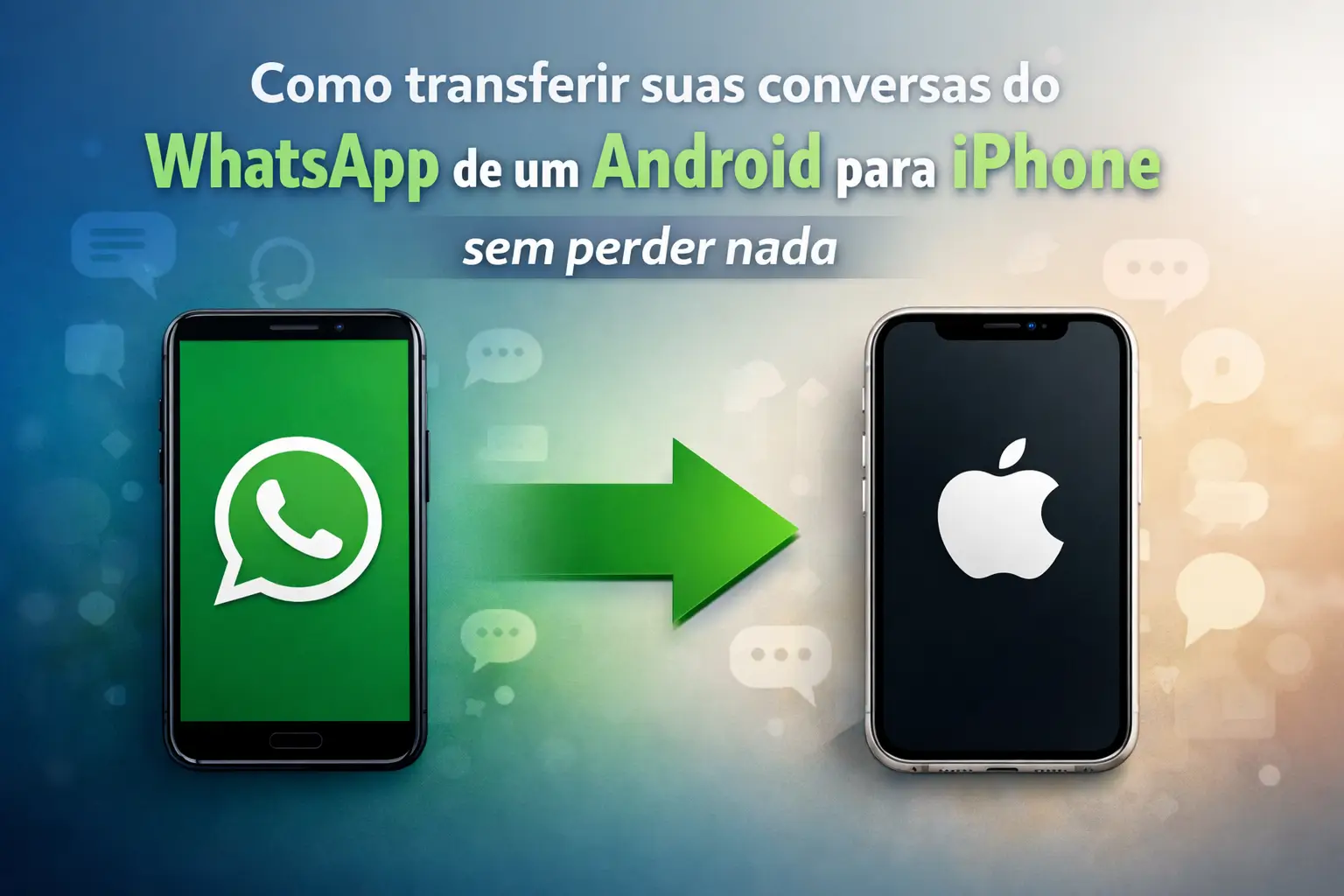
Changed your Android for an iPhone? Great! Now, the main question is: how to transfer WhatsApp conversations without losing anything?
The good news is that there is a method official and free you no longer need paid programs or risky gambiarras.
In this complete guide, we will show you the detailed step by step. Follow the instructions and your photos, videos and messages will be safe on the new mobile.
WhatsApp transfer: why is it now possible?
For many years, this migration was a nightmare.The structure of conversations on Android (Google Drive) and iPhone (iCloud) is totally different.
Fortunately, WhatsApp and Apple have teamed up to create a solution. They have developed a tool that“translates your data from one system to the next.
This tool is the app “Migrate to iOS”. It creates a secure bridge between the two appliances, ensuring that your information is transferred.
The process is secure, encrypted and official. That is, your data is not exposed and the transfer is guaranteed by the companies themselves.
Essential checklist: what you need before you start
Before pressing any button, it is essential to prepare the ground. Without these requirements, the transfer simply will not work. Write down there!
- System on Android: Your phone needs to have Android 5 (Lollipop) or a newer version. Most devices today already meet this.
- System on iPhone: The iPhone should be running iOS 15.5 or higher. If it's a new device, it will already come with the right version.
- “Migrate app for iOS”: Download and install this Apple app on your android Cell. It is available on Google Play Store.
- WhatsApp updated: Make sure WhatsApp has the latest version installed on both Android and the new iPhone.
- Same cell phone number: The transfer only works if you keep the same phone number.
- iPhone as new: This is the golden rule.The iPhone needs to be in the factory settings, reset.If you have already set it up, you will have to erase everything.
- Power and Wi-Fi: Both phones must be connected to the power outlet and the same Wi-Fi network throughout the process.
Point of attention: The requirement to reset iPhone is the one that causes the most problems.Do not skip this step or the migration option will not appear.
What goes and what stays: your data in change
The migration is quite complete, but not everything is transferred. It is important to know what you will keep and what will need to be reconfigured.
See the list of what will be taken to your new iPhone. Most of your digital memories will be safe.
- Account information: Your name, message and profile picture.
- Conversations: All individual and group chats.
- Media: Photos, videos, audios, documents and even stickers.
- Settings: Your privacy preferences and notifications.
- Communities and channels: Your groups of warnings and channels you follow.
Now, let's go to what not transferred. There are few items, but it is good to be aware so as not to have surprises.
- Call history: The list of calls made and received by WhatsApp will be lost.
- Display name: The name that appears for your contacts does not migrate.
- Channel media: Photos and videos received specifically on WhatsApp channels are not transferred.
- WhatsApp Business At the moment, this official method does not work for trading accounts.
Step by step: how to transfer WhatsApp from Android to iPhone
The time has come to put your hand in the dough. Take a deep breath, separate the two devices, the chargers and follow this guide carefully.
Remember: the process may take a while, depending on the amount of media you have. Be patient and do not interrupt.
- Zero your iPhone: If your iPhone is not new, go to Settings > General > Transfer or Reset iPhone. Tap “Delete Content and Settings”. Yes, this erases everything.
- Start iPhone: Follow the initial setup steps (language, country) until you get to the screen called “Apps and” Data. Stop here!
- Open “Migrate for iOS” on Android: On your old phone, open the Apple app, agree to the terms, and continue.
- Select migration on iPhone: On the iPhone “Apps and Data” screen, choose the option “Migrate Android” Data.
- Take code: The iPhone will display a six or ten digit code. Leave this screen open.
- Enter the code on Android: Enter the code that appeared on the iPhone inside the “Migrate for iOS” app on your Android.
- Connect appliances: A temporary Wi-Fi network will be created to connect the two phones. Wait for the connection to establish.
- Choose what to transfer: On Android, a list of data that can be migrated will appear. Select“WhatsApp” and whatever else you want.
- Start preparation on WhatsApp: When selecting WhatsApp, a new screen of the app itself will open. Tap on “Start” and wait for it to prepare your data.
- Start transfer: After preparation, tap “Next” to return to “Migrate to iOS”. Now tap “Continue” to send everything to iPhone.
- Wait for the end: The progress bar needs to reach the end on both devices. Do not touch anything until the app confirms that it is over.
- Set up iPhone: With the migration completed in the app, finish setting up your iPhone (Apple ID, etc).
- Install WhatsApp on iPhone: Download the latest version of WhatsApp from the App Store.
- Please log in at the end: Open WhatsApp, confirm your number (it has to be the same as before) and follow the instructions. It will detect the local backup and ask if you want to restore. Tap on “Start”.
Ready! After the restoration, all your conversations and media will be there, just like you left it on your Android.
Common mistakes and how to avoid them
Even with a guide, some details may go unnoticed.Knowing the most common mistakes is the best way to ensure that everything goes well.
Main alert: Do not activate WhatsApp on iPhone ahead of time! If you install and verify your number before you make the migration, the process will fail.
Another critical point is the connection. A drop in Wi-Fi or disconnect the phone from the socket can corrupt the data. If this happens, you will have to reset the iPhone and start all over again.
Also make sure there is enough space on the iPhone. If your WhatsApp conversations take up 20 GB, the new device needs to have that free space.
Beware of scams and fake apps
The need to transfer data creates a full plate for scammers.Be careful not to fall into traps that can cost your money and your safety.
WhatsApp and Apple do not recommend use of no third-party applications to make this migration.Many of them are paid and offer no guarantee.
- Security risk: Unofficial software may ask for full access to your data, including passwords and personal information.
- Compatibility issues: They can corrupt your conversation history irreversibly, making you lose everything.
- Without technical support: If something goes wrong using one of these programs, neither WhatsApp nor Apple can help you solve it.
Use only Apple's “Migrate for iOS” app, which is free and official.Wary of any solution that promises miracles or covers for it.
Where to seek official help?
If you followed all the steps and still encountered a problem, the right way is to seek the official support channels.
There is no phone number to call. WhatsApp support works directly through the website or the app itself.
The main source of information is the WhatsApp Help Center. There you will find detailed articles about the migration process, updated by the team.
For the “Migrate app for iOS”, support is from Apple. You can seek help on the company's official website in the iPhone support section.
Now that you have the path of the stones, the process has become much simpler. Organize everything, follow the guide and enjoy your new iPhone with all your conversations.
Maybe you might like: