Announcements
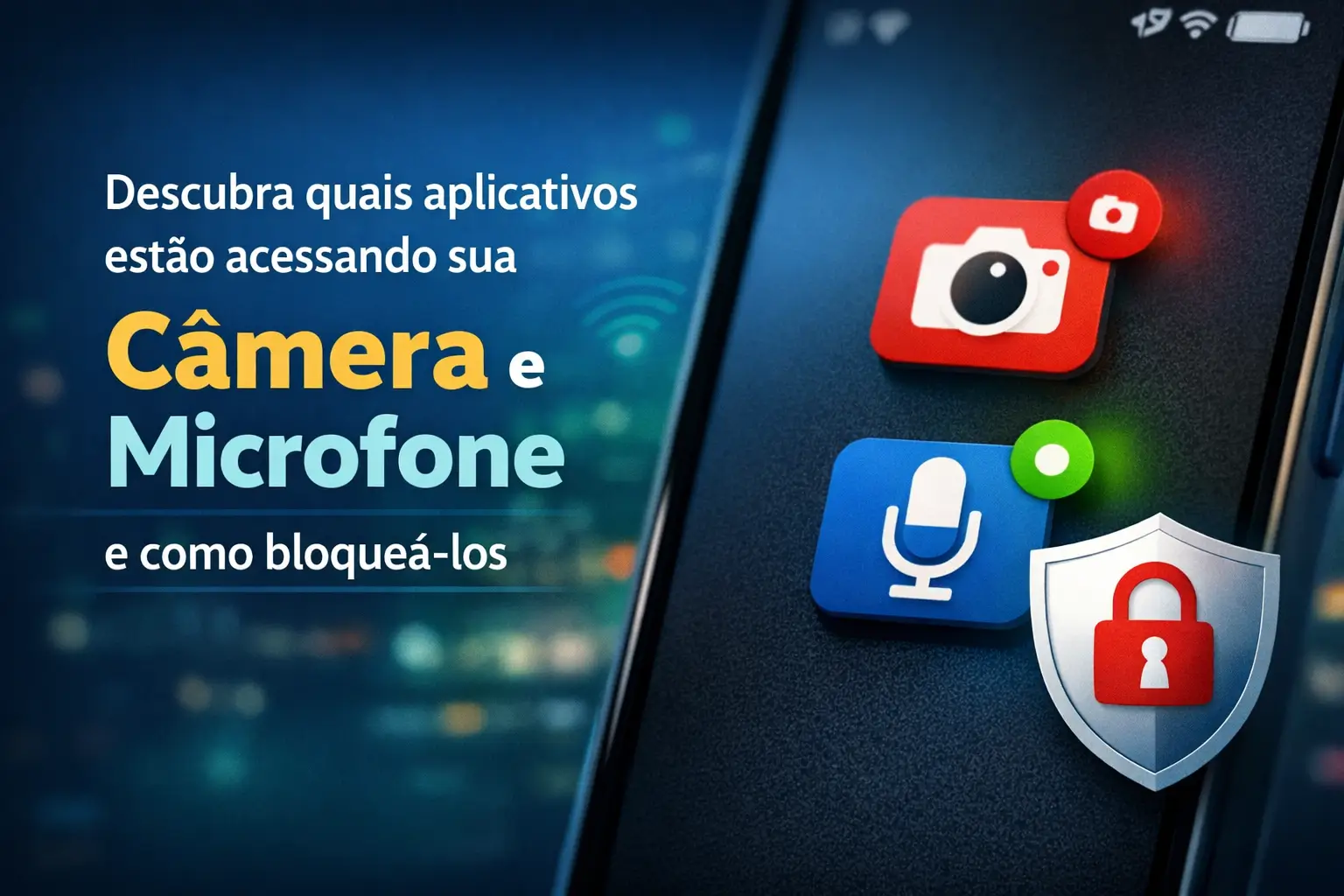
Your phone may be listening to you or seeing you now. Find out which apps access your camera and microphone without you knowing.
This handy guide shows you how to spot these curious apps. And most importantly, how to block their access right now.
We will teach you to take back control of your privacy. Everything in a simple, direct and without curling, both for Android and iPhone.
Why is this so important for your safety?
Think of your camera and microphone as windows to your life.When you give permission to an app, you are handing over the key to those windows.
Many apps need this access to work. A video calling app, for example, does not work without the camera and microphone.
The problem starts when applications that need not these features ask for access. A simple game or a flashlight do not have to listen to your conversations.
Uncritically given permissions can open doors to serious problems, from collecting data for ads to spying in more serious cases.
Fact: a malicious application can record audios and videos without any visible indication, exposing private moments and sensitive information.
So managing these permissions is not paranoia.It is a basic care, like locking the door of the house. It is about deciding who enters and who is left out.
Signs that your camera or microphone are turned on
Fortunately, both Android and iPhone (iOS) now have visual alerts.
Learning to recognize these signals is the first step to having total control.
On Android (version 12 or higher)
If you have a newer Android phone, keep an eye on the top right corner of the screen little green dot it'll show up over there.
This point is the universal signal that an app is using your camera or microphone at that very moment.
To know which app is responsible, just swipe from top to bottom on the screen. Tap the green icon and the name of the app will be revealed.
On iPhone (iOS 14 or higher)
On the iPhone, the alert system is a little different, using two colors to differentiate the accesses.
- Orange point: It means that your iPhone microphone is being used by some application.
- Green point: Indicates that the camera (and possibly the microphone along) is active.
These points appear at the top of the screen, near the operator's signal. On newer iPhones, they are on the “Dynamic Island”.
To see which app used the feature, open the” Control Center“ (swipe from the top right down). The app name will appear at the top.
How to view access history on Android
Seeing the green dot is good for knowing what happens now. But what if you want to see what happened in the last 24 hours?
Android has a fantastic tool for this: the Privacy Panelit is like a journal that records everything for you.
There, you can see a detailed timeline of which apps accessed your camera, microphone and even location.
Follow these steps to access:
- Open them “” Settings from your mobile (the gear icon).
- Search for “Security and privacy” and tap on that option.
- Tap “Privacy panel”.
- Ready! You will see a graph showing the accesses. Tap on “” camera or “Microphone” to see the list of apps.
Use this tool to find surprises.Maybe an app you barely use is accessing your microphone frequently.
Checking the privacy report on iPhone (iOS)
The iPhone also offers a full report, allowing you to investigate app activity in even more detail.
The function is called “Apps” Privacy Report. It not only shows the accesses, but also which sites the app communicated with.
To activate and consult this report, the path is simple:
- Go in “Ajustes” (the gear icon).
- Scroll the screen and select “Privacy and Security”.
- At the end of the page, tap “Apps” Privacy Report.
- If it is the first access, you will need to activate it. After that, it will start recording the information.
After a few hours of use, go back to this screen.You will have a detailed summary of which apps used the camera, microphone, contacts and more.
How to block access: the definitive step-by-step
Now that you know how to investigate, it's time to take action. Blocking app access to your camera and microphone is fast and can be done at any time.
We will show you the way of the stones for Android and iPhone. You can revoke the permission of a specific app or all at once.
Blocking permissions on Android
On Android, you have full control through the” “Permission Manager.That's where the magic happens.
- Open them “” Settings from your apparatus.
- Go in “Apps” or“” apps.
- Search for “Permission manager” and touch him.
- You will see a list of features (Camera, Microphone, Contacts, etc). Tap “CAMera”.
- The list of apps will appear. Tap the app you want to block and choose the option “Do not allow”.
- Repeat the process for the “Microphone”.
Gold tip: on Android 12 or higher, you can turn off the camera and microphone to ALL the apps at once. Just swipe the screen from top to bottom twice and look for the buttons “Camera access” and “Amicrophone access”. Disable them.
Revoking permissions on iPhone (iOS)
In Apple's system, control is also centralized and very intuitive.You can manage by feature or by application.
Follow this path to get an overview:
- Open them “Ajustes”.
- Go to “Privacy and Security”.
- Tap “Microphone” or “CAMera”.
- You will see a list of all the apps that have requested access.
- Enough disable green key next to the app you want to block.Simple as that.
If you prefer, you can go directly to the settings of a specific app. Scroll the main screen of the “Adjustments” to the end and find the name of the app in the list.
When you tap it, all the permissions granted (camera, photos, location) will be displayed for you to manage individually.
Alternatives to older Android phones
If your Android is earlier than version 12, it does not have the native green dot or the Privacy Panel.
You can still manage permissions manually by going to “” Settings, then “Apps”, and checking each app individually.
To have the visual alert feature, there is an alternative. The free app “Access Dots” simulates the iOS and Android 12 alert points.
It was last updated in July 2020. Although it is an option, remember that native system solutions are always more secure and reliable.
The best recommendation is to always keep your phone up to date. Updates bring not only new features but essential security fixes.
Next steps: create a verification routine
Knowing how to block is the first step.The second is to turn this verification into a habit to keep your privacy always protected.
Take five minutes each month to check the Privacy Dashboard or Apps Report.It's a small gesture with a big impact on your security.
By following these tips, you are no longer an easy target and have full control over your information. Share this guide and help more people.
Maybe you might like: