Announcements
- Your main email: Gmail, Outlook, Yahoo.It is the most important account of all.
- Social networks: WhatsApp, Instagram, Facebook. To prevent them from stealing your profile and scamming your friends.
- Bank and financial accounts: App of your bank, Mercado Pago, investment brokers.
- Government Services: The Gov.br account is the gateway to dozens of essential public services.
- Online stores and cloud apps: Amazon, Mercado Livre, Google Drive, Dropbox. Where are your card data and personal files.
Step by step: how to enable protection on your accounts
The time has come to get your hands dirty. The process is similar in most services and takes a few minutes. Follow these guides for the most used platforms.
Google Account (Gmail, YouTube, Drive)
Protecting your Google Account is step one. It controls almost everything in your digital life.
- Access the site myaccount.google.net and login.
- In the menu on the left, look for “Safety”.
- Scroll to the “ sectionHow do you log in to Google” and click “ Two-step verification”.
- Follow the instructions.The first option will be to receive notifications on your mobile phone (Google Requests), which is the most recommended.
- Also set up a second method, such as the Google Authenticator or backup codes.
Preventing cloning of your WhatsApp is key. Enabling two-step verification here creates a PIN password that only you know.
- Open WhatsApp and go to Settings (or on the three dots).
- Tap “Conta and then in “Two-step confirmation”.
- Click on “Ativar”. You will need to create one 6-digit PIN.
- Attention: choose a number that you won't forget, but that isn't obvious like“123456” or your date of birth.
- Inform one e-mail address. It will be used to retrieve your PIN in case you forget it. Do not skip this step!
Protecting your Instagram prevents your profile from being stolen to apply fake PIX scams or sell products that do not exist.
- On your profile, tap the menu (the three dashes in the upper right corner).
- Go in “Central de Contas” and then in “Password and security”.
- Choose “Authentication of two factors” and select your account.
- You can choose between “HARM authentication app (recommended), WhatsApp or SMS.
- Follow the instructions to connect the authenticator app. Instagram will show you the booking codes. Keep them in a safe place!
Account Gov.br
Your Gov.br account gives you access to everything from the digital workbook to the Income Tax.
- Download and install the app gov.br on your cell phone.
- Inside the app, log in and search for the option “Safety of the” account.
- Enable a “ Two-step verification”.
- From now on, every login will ask for a code generated within your gov.br application.
Important alert: never uninstall the gov.br app or change your phone without first disabling the verification or following the device change procedure.
Get smart: the scams to steal your codes
Even with authentication enabled, criminals don't give up. They use social engineering, which is the art of deceiving people, to get what they want.
Watch out for these common pitfalls:
- The fake technical support: Someone calls or texts you saying they are from the bank or social network. They invent a problem and ask for the code that “just arrived” for you. Never share code with anyone.
- Fake login pages: You receive a link by email or SMS about a must-see promotion. The page looks real, but it is a copy to steal your password and your 2FA code. Always check the address (URL) of the site.
- The desperate friend: A scammer breaks into a friend's account and texts him asking for a borrowed code or help to unlock something.
The golden rule is one: verification codes are personal and non-transferable. No serious company will ask you for this by phone or message.
I lost my cell phone, now what? The emergency plan
Losing your phone with the authenticator app installed may seem like a nightmare. But if you prepared yourself, the solution is simple.
When you activate 2FA on most services, they give you the recovery codes (or backup codes). They are a set of unique emergency passwords.
Your task is print or annotate these codes and store them in a safe place outside your mobile.It can be in your wallet or in a drawer at home.
If you lose access to your device, simply use one of these one-time-use codes to sign in to your account and set up authentication on your new device.
If you have not saved the codes, the path is longer. You will have to go through the process of recovering the account of the platform, which may take time and require documents.
Do not wait for the problem to happen. Activate 2FA, and the first thing to do is save backup codes. That's your real insurance.
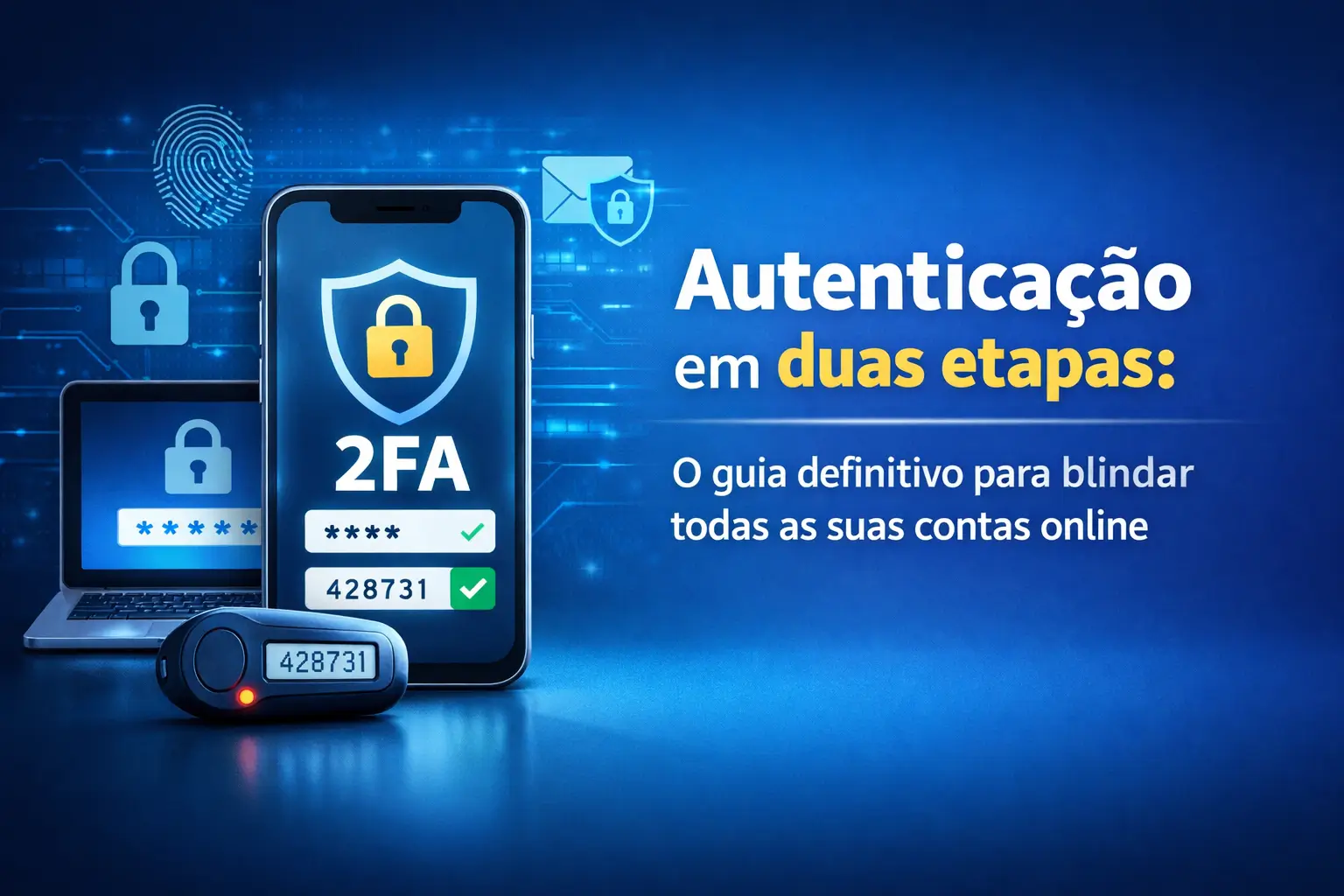
Your password has leaked, now what? two-step authentication (2FA) it is the extra layer of security that prevents attackers from accessing it, even if they know your password.
This definitive guide will teach you how to shield your most important accounts.It is simpler than it sounds and essential for your digital security.
We will show you step by step to protect your WhatsApp, Instagram, Gmail and more. Enough of taking unnecessary risks on the internet.
What is two-step authentication and why is it urgent?
Think of 2FA as a second lock on the door of your digital life.The first is your password, something you knows.
The second is something that you has, like your cell phone, or something you is, Like your fingerprint.It is an extra confirmation that it is yourself trying to get in.
Without that second key, a thief with your password can't get in. In a world with daily data leaks, this isn't luxury, it's necessity.
The truth is hard: just the password no longer protects anything. Enabling two-step verification is the most effective measure you can take today.
It protects your money, your private conversations, and your personal information from onlookers and criminals who are always on the prowl.
What types of verification are there?
There are several ways to do this second check. Each has a different level of security and practicality. It is good to know to choose the best for you.
- SMS codes: The most common. A code arrives by text message on your mobile. It is easy but vulnerable to chip exchange scam (SIM Swap).
- Authenticator Apps: Apps like Google Authenticator generate code that changes every 30 seconds much safer that SMS.
- Notifications “Push”: A message appears on your mobile asking “Is you?”. Just tap “Sim” to approve the login.Sim and secure.
- Physical Security Keys: A device that looks like a thumb drive (like YubiKey) that you plug into your computer.
- Biometrics: Your fingerprint or your face recognition. It is already common to unlock your phone and access banking apps.
- Code by E-mail: Less secure, because if your email is hacked, the criminal will have access to everything.
The general recommendation is to use authenticator applications. They even work without internet and are a great balance between security and convenience.
Where you NEED to enable authentication right now
You don't have to activate everywhere, but some accounts are critical and should be your top priority.
If an attacker enters your primary email, for example, they can reset the password for all your other accounts.
Start with these accounts today:
- Your main email: Gmail, Outlook, Yahoo.It is the most important account of all.
- Social networks: WhatsApp, Instagram, Facebook. To prevent them from stealing your profile and scamming your friends.
- Bank and financial accounts: App of your bank, Mercado Pago, investment brokers.
- Government Services: The Gov.br account is the gateway to dozens of essential public services.
- Online stores and cloud apps: Amazon, Mercado Livre, Google Drive, Dropbox. Where are your card data and personal files.
Step by step: how to enable protection on your accounts
The time has come to get your hands dirty. The process is similar in most services and takes a few minutes. Follow these guides for the most used platforms.
Google Account (Gmail, YouTube, Drive)
Protecting your Google Account is step one. It controls almost everything in your digital life.
- Access the site myaccount.google.net and login.
- In the menu on the left, look for “Safety”.
- Scroll to the “ sectionHow do you log in to Google” and click “ Two-step verification”.
- Follow the instructions.The first option will be to receive notifications on your mobile phone (Google Requests), which is the most recommended.
- Also set up a second method, such as the Google Authenticator or backup codes.
Preventing cloning of your WhatsApp is key. Enabling two-step verification here creates a PIN password that only you know.
- Open WhatsApp and go to Settings (or on the three dots).
- Tap “Conta and then in “Two-step confirmation”.
- Click on “Ativar”. You will need to create one 6-digit PIN.
- Attention: choose a number that you won't forget, but that isn't obvious like“123456” or your date of birth.
- Inform one e-mail address. It will be used to retrieve your PIN in case you forget it. Do not skip this step!
Protecting your Instagram prevents your profile from being stolen to apply fake PIX scams or sell products that do not exist.
- On your profile, tap the menu (the three dashes in the upper right corner).
- Go in “Central de Contas” and then in “Password and security”.
- Choose “Authentication of two factors” and select your account.
- You can choose between “HARM authentication app (recommended), WhatsApp or SMS.
- Follow the instructions to connect the authenticator app. Instagram will show you the booking codes. Keep them in a safe place!
Account Gov.br
Your Gov.br account gives you access to everything from the digital workbook to the Income Tax.
- Download and install the app gov.br on your cell phone.
- Inside the app, log in and search for the option “Safety of the” account.
- Enable a “ Two-step verification”.
- From now on, every login will ask for a code generated within your gov.br application.
Important alert: never uninstall the gov.br app or change your phone without first disabling the verification or following the device change procedure.
Get smart: the scams to steal your codes
Even with authentication enabled, criminals don't give up. They use social engineering, which is the art of deceiving people, to get what they want.
Watch out for these common pitfalls:
- The fake technical support: Someone calls or texts you saying they are from the bank or social network. They invent a problem and ask for the code that “just arrived” for you. Never share code with anyone.
- Fake login pages: You receive a link by email or SMS about a must-see promotion. The page looks real, but it is a copy to steal your password and your 2FA code. Always check the address (URL) of the site.
- The desperate friend: A scammer breaks into a friend's account and texts him asking for a borrowed code or help to unlock something.
The golden rule is one: verification codes are personal and non-transferable. No serious company will ask you for this by phone or message.
I lost my cell phone, now what? The emergency plan
Losing your phone with the authenticator app installed may seem like a nightmare. But if you prepared yourself, the solution is simple.
When you activate 2FA on most services, they give you the recovery codes (or backup codes). They are a set of unique emergency passwords.
Your task is print or annotate these codes and store them in a safe place outside your mobile.It can be in your wallet or in a drawer at home.
If you lose access to your device, simply use one of these one-time-use codes to sign in to your account and set up authentication on your new device.
If you have not saved the codes, the path is longer. You will have to go through the process of recovering the account of the platform, which may take time and require documents.
Do not wait for the problem to happen. Activate 2FA, and the first thing to do is save backup codes. That's your real insurance.
Maybe you might like: