Announcements
- Download from Play Store: Look for the name of the chosen launcher (ex:“Niagara Launcher”) and install like any other application.
- Open the app: When opening for the first time, the launcher will do a quick initial setup.
- Set as default: Android will ask you which home screen you want to use. Select the new launcher and choose the option “Always”.
- Ready! Explore and adjust: Now, dive into the settings of the new launcher to adjust colors, icons, gestures, and everything in between.
If the system does not ask which launcher to use, the path is manual: go to “” settings > “” apps > “Standard apps” > “App start”.
Turbine the look with Advanced Icons and Widgets
With a launcher installed, a new world of customization opens up. You can now use advanced widget icon packs and apps.
Icon packs (Icon Packs) change the look of all your apps, making the look more cohesive and elegant. There are thousands of styles in the Play Store.
To apply them, just enter the settings of your launcher and search for the option “Appearance” or “Icon Pack”. It is a two-click process.
For widgets, applications such as KWGT (Kustom Widget Maker) they are the next level.They allow you to create your own widgets from scratch.
O Widgetsmith, famous on iPhone, also came to Android. It facilitates the creation of aesthetic widgets with photos, watches and countdowns.
These tools give you total freedom to create a home screen that is functional and at the same time a true digital work of art.
Security Alert: customize without falling into stolen
Personalizing is great, but security always comes first. A malicious application can steal your data and cause a lot of headache.
Follow these essential tips to ensure that your customization is 100% safe and hassle-free.
- Use only Google Play Store: Download launchers, icons and widgets only from the official Android store. Avoid APK files from unknown websites.
- Check permissions: Before installing, see what the app asks for. A wallpaper app does not need access to your contacts, for example.
- Trust Google Play Protect: It is the native protection of Android. It scans the apps for suspicious behavior to protect you.
- Be wary of “milagrosos” apps: If an app promises something too good to be true, such as cleaning memory or speeding up your phone, be wary.
When giving permission to an app, you are entrusting your data to it. Think carefully before clicking on “accept” without reading what is being requested.
Tips for old or less powerful phones
You don't need a top-of-the-line phone to have a personalized experience.Many launchers are designed to run well on more modest devices.
If your smartphone is crashing or has little memory, choosing the right launcher is even more important. Escape the heavy and full of effects apps.
Opt for launchers known for lightness and speed. They can even leave your old phone faster than the original factory system.
Recommendation: O Niagara Launcher's and the Launcher Launcher they are excellent options. They consume few resources and are very fluid.
Avoid using too many animated widgets or video wallpapers.These features consume more battery and can slow down the system on basic mobile phones.
Smart personalization improves use even on devices with limited hardware.The key is to choose the right tools for your device.
Now you have all the information to get started. Explore the options, test without fear and create a home screen that is your face.
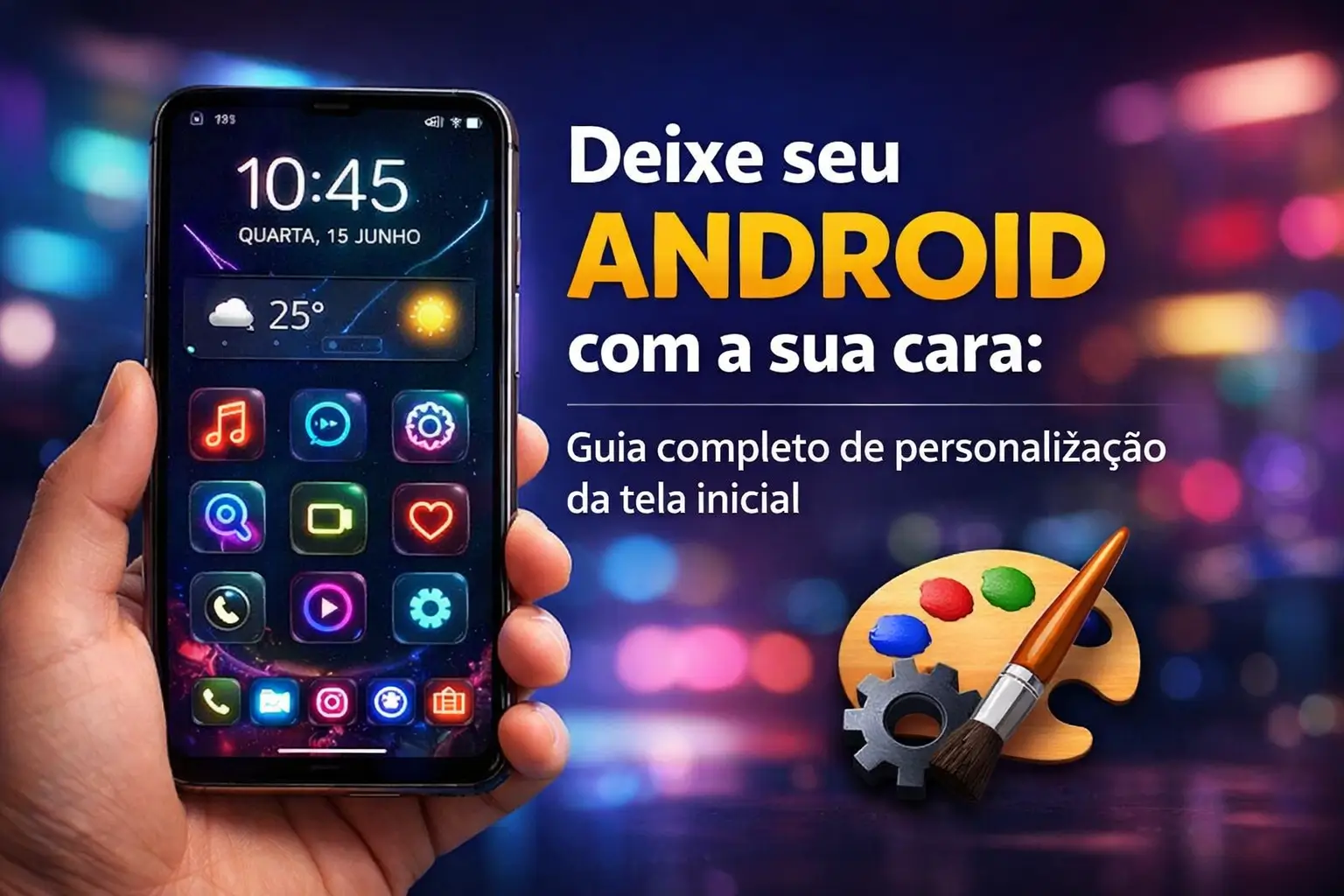
Your Android phone does not have to be the same as everyone else. Leaving the home screen with your face is easier and faster than you think.
Customizing your device improves day-to-day use. You save time and make everything more practical, with the apps and information that matter most to you.
This complete guide shows you the way.We will teach you how to transform your Android, from simple adjustments to the most radical changes, safely.
Why customize your Android?
The home screen is the gateway to your phone. It is the first thing you see. Organizing it your way transforms the experience of daily use.
Good personalization puts your most used apps within reach of a tap. This saves you time and reduces the digital mess in your routine.
In addition to practicality, customization leaves the device with a look that reflects your personality. It is like decorating your home, but in the digital world.
The basics: tools that already come on mobile
You do not need to download anything to get started.The Android system itself already offers great tools to give a new face to your smartphone.
Changing the wallpaper, for example, is the first step.It is the simplest change and that causes the greatest immediate visual impact on your screen.
- Change wallpaper: Press and hold an empty space on the screen. Choose “Wallpaper and” style and use a photo of yourself or a system image.
- Add Widgets: In the same menu, select “Widgets”. They are smart shortcuts that show app information right on the screen.
- Organize icons: Create folders to group apps by type, such as “Redes Social” or “Bancos”. This clears the screen and makes it easy to find what you need.
If you have the Android 14 or higher, the options are even greater. It is possible to customize the shortcuts and the lock screen clock.
Quick tip: On Android 14, artificial intelligence adjusts the lock screen.If the weather forecast changes, the weather widget may gain prominence.
Widgets: your apps on the home screen
Widgets are like windows for your apps. They show important information without you having to open the full app.
Think of the weather widget, which shows the current temperature. Or the calendar widget, which displays your next appointments.
The latest Androids, with the system Material You, make everything more beautiful. Widgets adapt their colors automatically based on your wallpaper.
Some widgets are essential for everyday life.We have separated some that can make your life much easier:
- At a Glance (Google): It shows date, weather, events, flights and even traffic. It usually comes installed and is extremely useful.
- Google Calendar: Perfect for viewing your schedule at a glance, without having to open the calendar at all times.
- Spotify: Control your music, podcasts and playlists directly from the home screen.It makes it much easier to pause or change tracks.
To add, the path is always the same: tap and hold an empty space on the screen, choose “Widgets” and drag the desired one to the place you prefer.
One step further: what are Launchers?
If the native options are not enough, it's time to know the launchers. They are applications that completely replace your home screen.
Imagine switching the “reception” on your phone. A launcher changes everything: the layout of icons, animations, transitions between screens and even gestures.
With a launcher, the level of customization is total. You can change the size of icons, the number of apps per row, and more.
They offer a control that the standard Android system does not allow. It is the definitive tool for those who want a truly unique mobile.
Launchers Guide: find your ideal style
The Google Play Store is full of launcher options.Each caters to a different profile.We have listed the most popular and reliable of 2026.
There is no better”“, but rather the one that fits your use. Some focus on simplicity, others on productivity or crazy visuals.
| Launcher | Ideal for those who are looking for |
|---|---|
| Niagara Launcher's | Simplicity and use with one hand.It is light and modern. |
| Launcher Launcher | Android Visual “puro”, but with more customization. |
| Smart Launcher 6 | Automatic organization of apps and speed. |
| Microsoft Launcher | Integration with Microsoft services such as email and tasks. |
| Minimalist Launchers | Reduce distractions and cell phone addiction. |
For those who want to escape the sameness, there are themed launchers.They can imitate the interface of a computer or have a futuristic look of science fiction.
And Nova Launcher? It is still a very powerful classic.However, the free version may have ads, and the original team is no longer in the project.
How to install a Launcher step by step
Installing a new launcher is very simple and totally reversible. If you do not like it, just uninstall. Here's how to do it in a few minutes.
- Download from Play Store: Look for the name of the chosen launcher (ex:“Niagara Launcher”) and install like any other application.
- Open the app: When opening for the first time, the launcher will do a quick initial setup.
- Set as default: Android will ask you which home screen you want to use. Select the new launcher and choose the option “Always”.
- Ready! Explore and adjust: Now, dive into the settings of the new launcher to adjust colors, icons, gestures, and everything in between.
If the system does not ask which launcher to use, the path is manual: go to “” settings > “” apps > “Standard apps” > “App start”.
Turbine the look with Advanced Icons and Widgets
With a launcher installed, a new world of customization opens up. You can now use advanced widget icon packs and apps.
Icon packs (Icon Packs) change the look of all your apps, making the look more cohesive and elegant. There are thousands of styles in the Play Store.
To apply them, just enter the settings of your launcher and search for the option “Appearance” or “Icon Pack”. It is a two-click process.
For widgets, applications such as KWGT (Kustom Widget Maker) they are the next level.They allow you to create your own widgets from scratch.
O Widgetsmith, famous on iPhone, also came to Android. It facilitates the creation of aesthetic widgets with photos, watches and countdowns.
These tools give you total freedom to create a home screen that is functional and at the same time a true digital work of art.
Security Alert: customize without falling into stolen
Personalizing is great, but security always comes first. A malicious application can steal your data and cause a lot of headache.
Follow these essential tips to ensure that your customization is 100% safe and hassle-free.
- Use only Google Play Store: Download launchers, icons and widgets only from the official Android store. Avoid APK files from unknown websites.
- Check permissions: Before installing, see what the app asks for. A wallpaper app does not need access to your contacts, for example.
- Trust Google Play Protect: It is the native protection of Android. It scans the apps for suspicious behavior to protect you.
- Be wary of “milagrosos” apps: If an app promises something too good to be true, such as cleaning memory or speeding up your phone, be wary.
When giving permission to an app, you are entrusting your data to it. Think carefully before clicking on “accept” without reading what is being requested.
Tips for old or less powerful phones
You don't need a top-of-the-line phone to have a personalized experience.Many launchers are designed to run well on more modest devices.
If your smartphone is crashing or has little memory, choosing the right launcher is even more important. Escape the heavy and full of effects apps.
Opt for launchers known for lightness and speed. They can even leave your old phone faster than the original factory system.
Recommendation: O Niagara Launcher's and the Launcher Launcher they are excellent options. They consume few resources and are very fluid.
Avoid using too many animated widgets or video wallpapers.These features consume more battery and can slow down the system on basic mobile phones.
Smart personalization improves use even on devices with limited hardware.The key is to choose the right tools for your device.
Now you have all the information to get started. Explore the options, test without fear and create a home screen that is your face.
Maybe you might like: