Announcements
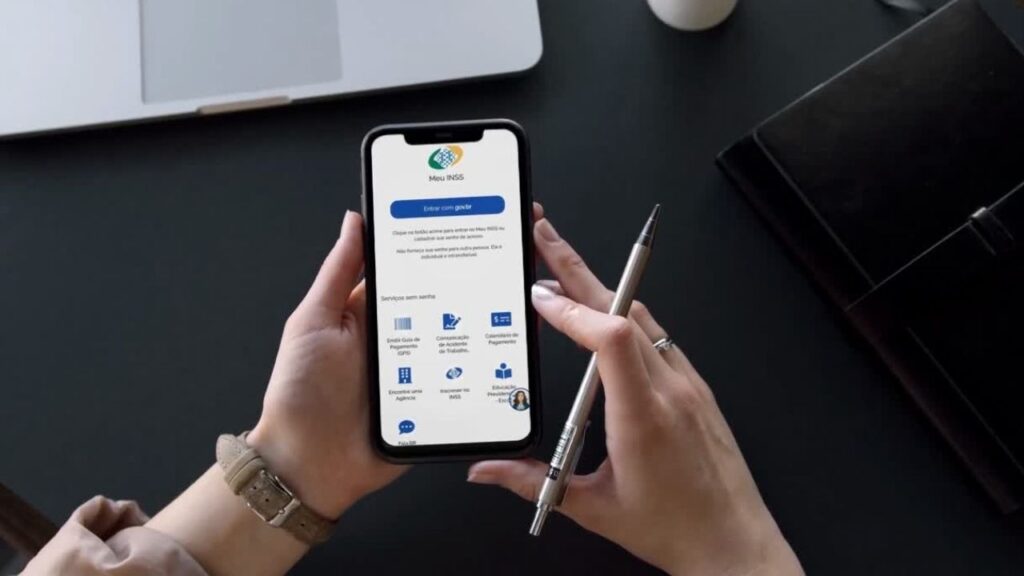
Accessing My INSS was much simpler with the official Social Security application. In a few minutes, citizens can enter the platform, consult important information, follow orders and request services without having to go to an agency.
How to login to the My INSS application
📲 To access My INSS, the first step is to log in with your gov.br account.
This login acts as a digital identity that allows you to use various public services online.
👉 You can access the system through the application or the official website:
🔗 https://my.inss.gov.br/#/login
After that, follow these simple steps:
1️⃣ Open the application My INSS on mobile
2️⃣ Tap “Enter with gov.br”
3️⃣ Inform your CPF
4️⃣ Enter your gov.br account password
5️⃣ Confirm access
✅ After logging in, the system automatically opens the home screen with the available services.
📌 If you have not yet registered, it will be necessary create a gov.br account before accessing My INSS.
How to find the main services in the app
🔎 After accessing My INSS, the user finds the services organized in a simple panel within the application.
On the home screen, you can use:
📂 Services menu
🔍 Search bar to find specific functions
⭐ Favorites area, which allows you to save frequently used services
Among the most sought after services within the application are:
- 📄 Request retirement
- 📊 Simulate retirement
- 💰 Benefit payment extract
- 📑 Extract of contributions (CNIS)
- 🏥 Schedule medical expertise
- 📩 Send documents or certificates
- 📋 Issue statements
- ✏️ Update cadastral data
📌 All these services can be accessed directly by mobile after logging into the account.
Moreover, the system brings together more than 90 social security services available online.
How to query information within the application
📊 One of the most used functions when accessing My INSS is to consult social security information.
Within the application, the user can check important data such as:
- historical contributions
- payment statements
- order progress
- documents & declarations
For example:
📑 Contribution extract (CNIS)
Shows the entire history of work links and social security contributions.
💰 Payment extract
Displays amounts received, responsible bank and date of payment of the benefit.
📄 Grant letter
Document confirming the granting of the benefit and explaining the calculation of the amount.
📌 These consultations help citizens to monitor their social security situation with more control.
How to track requests and requests
📂 After requesting some service, it is possible to track everything within the application.
For this:
1️⃣ Access the menu “Schedules/Requests”
2️⃣ Locate the desired request
3️⃣ Tap the protocol to see the progress
The most common statuses displayed by the system are:
- 🕒 In analysis nde inSS is still evaluating the request
- ✅ Completed ^^^^^^^^^^ The process has been finalized
- ❌ Undeferred ^^^^^^^^^ benefit was denied
📩 Stay inside: The system can also send notifications about changes in the process.
These warnings can be given by:
- app notifications
- SMS in some cases
if any pending appears, it usually stays in the area “Complying with” Requirement, where it is possible to send documents directly by mobile phone.
Common problems when accessing My INSS
⚠️ In some cases, the user may encounter difficulties when trying access My INSS.
The most common problems include:
❌ Incorrect gov.br account password
❌ Account blocked by multiple login attempts
❌ Outdated application
❌ Momentary instability of the system
📌 If the problem is related to the password, then it is possible to regain access through the official website:
Another option is to seek help for Service Center 135, available Monday to Saturday, from 7h to 22h.
📞 This channel can guide you on access, registration and available services.
📲 Once you learn how to access My INSS and navigate the application, it becomes much easier to use the digital services of Social Security. With just a few taps on your phone, you can consult information, track requests and solve various demands without facing queues.