Announcements
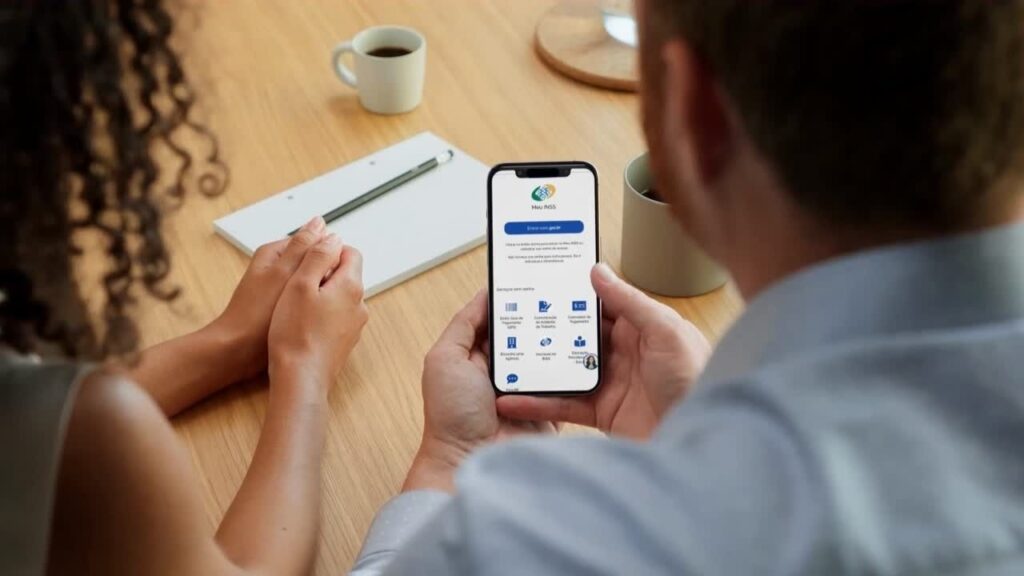
Solving INSS questions without leaving home starts with a simple step: download the My INSS application on your phone. In a few minutes you can install the official app and have access to consultations, requests for benefits, statements and various Social Security services directly in the palm of your hand.
How to download the My INSS app in the official store
📲 The My INSS app can be downloaded for free from the official app stores. It is available for both Android and iPhone phones.
Downloading from official stores is important because it ensures you are installing the legitimate and secure version of the application.
Use official links:
- Android (Google Play):
🔗 https://play.google.com/store/apps/details?id=br.gov.dataprev.meuinss&hl=en_BR - iPhone (App Store):
🔗 https://apps.apple.com/app/my-inss-central-service%C3%A7os/id1243048358
📌 Another safe option is to access the official page of the service on the government portal, which directs to stores:
🔗 https://www.gov.br/en/apps/my-inss-central-de-services
If you prefer, you can also access the services directly through the browser on the website:
🔗 https://my.inss.gov.br/#/login
How to install the app on Android
🤖 Installing on Android is simple and takes only a few minutes.
Follow step by step:
1️⃣ Open the Google Play Store on your cell phone
2️⃣ Search for My INSS
3️⃣ Check if the app is official
4️⃣ Tap Install
5️⃣ Wait for the download to finish
after that, the app will be installed automatically on your mobile phone.
✅ Once you open the app for the first time, you can sign in using your gov.br account.
How to install the app on iPhone
🍎 IPhone users can also install the app quickly from the App Store.
See how to do it:
1️⃣ Open the App Store on iPhone
2️⃣ Search for My INSS
3️⃣ Tap the official app
4️⃣ Press Get
5️⃣ Confirm the download with Face ID, Touch ID or password
📲 After installation, the application will appear on the screen of the mobile and can already be used.
🔐 Access to the services is done with login to the gov.br account.
How to know if the app is official
⚠️ Before installing any app, it is important to confirm that it is the official government app.
Some details help identify the correct application:
- 📌 App name: My INSS
- 📌 Developer: Services and Information of Brazil
- 📌 Available in official stores (Google Play or App Store)
🚨 Stay tuned: Avoid downloading apps from unknown websites or suspicious links.
👉 The safest way is to access the official government page:
🔗 https://www.gov.br/en/apps/my-inss-central-de-services
Common problems when downloading the app
⚠️ In some cases, the download may present difficulties. The most common problems include:
📶 Unstable internet
A weak connection can interrupt the download.
📱 Lack of space on the mobile phone
If the device is full, the application may not install.
🔄 Outdated cell phone system
Old versions of Android or iOS may cause incompatibility.
🔎 Wrong or unofficial application
Downloading outside of official stores can generate errors or security risks.
If the problem persists, it is also possible access the INSS services directly through the website:
🔗 https://my.inss.gov.br/#/login
What to do after installing My INSS
📱 After installing the My INSS application, the next step is to access your account to start using the services.
When you open the app for the first time, tap “Enter with gov.br” and enter your CPF and password of the gov.br account.
🔐 If you have not yet registered, the system itself will allow you to create your account quickly by entering some personal data and answering security questions.
After logging in, the app will show the services panel, where it is possible to consult benefits, follow orders, issue extracts and access various INSS features directly by mobile.