Announcements
Free up storage space through WhatsApp it becomes increasingly necessary with the constant use of the app to send photos, videos, audios and documents.
Fortunately, the app offers internal tools that allow you to organize and delete unnecessary files, which helps to free up space on the device without the need to install additional applications.The following we have prepared a step by step simple and efficient how to do it! Write it down!
1. Access WhatsApp storage settings to free up space
The first action is to open the application settings on the phone.
Open WhatsApp and go to Settings > Storage & data > Manage storage.
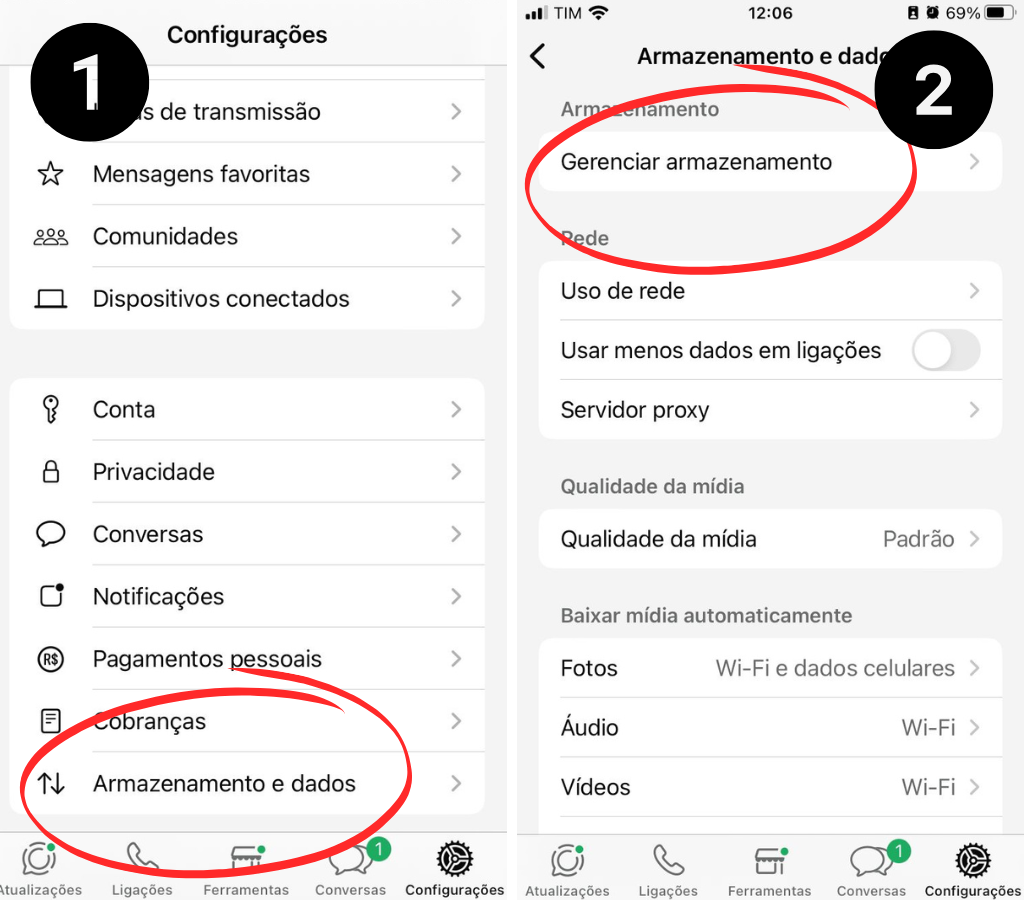
On this screen, the application will show how much space is being consumed by WhatsApp and will present options to manage the stored files.
2. Delete large files and unnecessary media
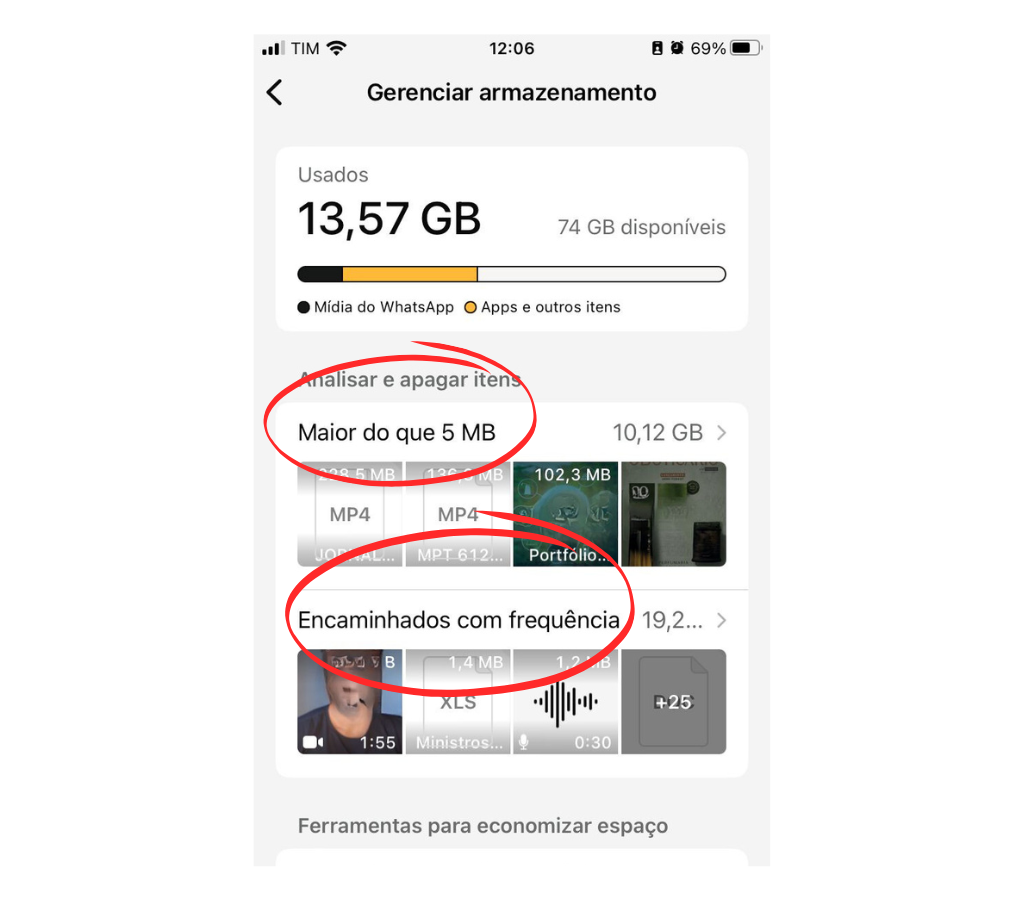
WhatsApp automatically organizes media into categories, how “Walked with” frequency or “Files greater than 5 MB”.
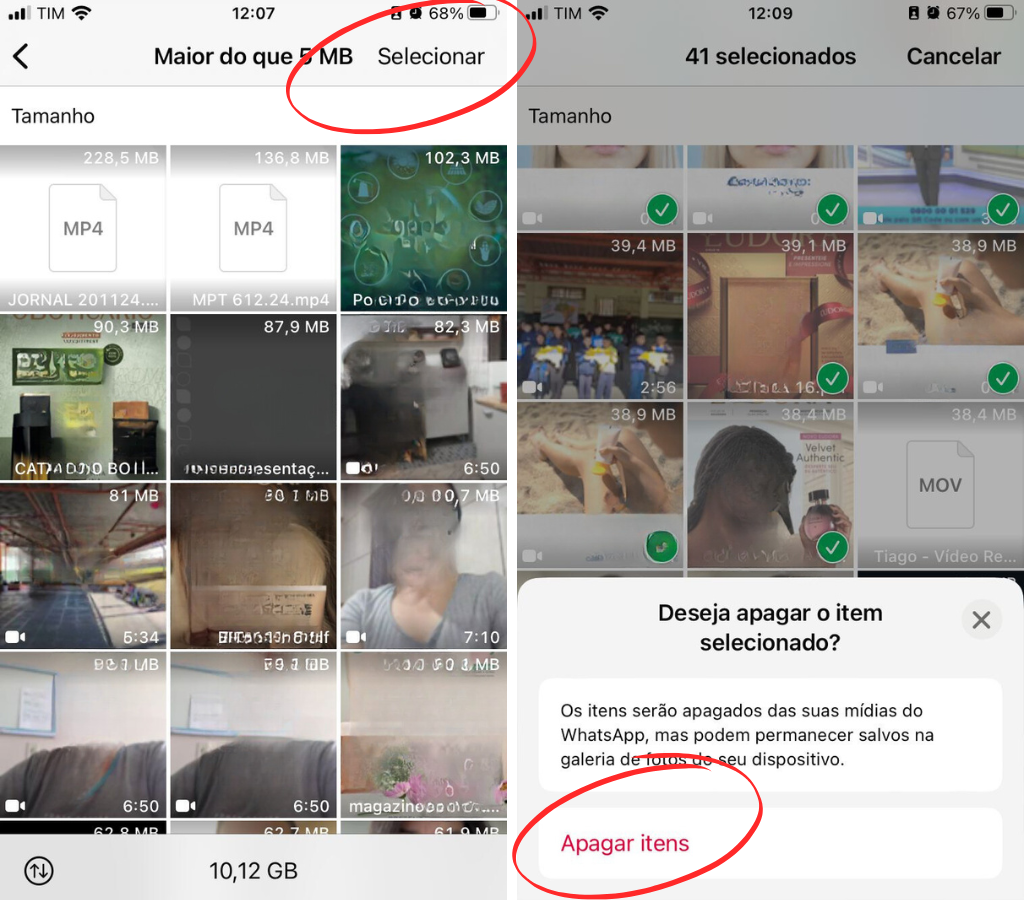
Thus, so access each category and select the files you want to delete. To save more space, you can prioritize videos, photos, and audios large or old which are no longer of use.
After selecting the items, click the trash can and confirm the deletion.
3. Arrange media by date or size
Use them filter options to arrange the files in order of size or date of submission, if you prefer.
This function helps to quickly identify the largest or oldest files, which makes it easy to delete unnecessary accumulated media.
4. Clean storage by conversation or group
Na management screenwhatsapp also allows you to view space consumption by conversation or group.
Click on the name of a contact or group to access all media exchanged in that conversation.
You can manually select the files for deletion or use the option “Select all” to completely clear items from a specific conversation.
5. Set up automatic media download to ensure storage space on WhatsApp
Finally, it is worth setting up the automatic download to prevent WhatsApp from taking up too much space again quickly.
For this, go on Settings > Storage & data > Automatic media download.
Uncheck options to prevent photos, videos, audios, or documents from automatically downloading when using mobile, Wi-Fi, or roaming data.
Was this article useful for you? Consider leaving a comment!
Maybe you might like: